Human Input
The Human Input node pauses a flow and waits for a person to approve or reject before it continues. Use it whenever you want a human in the loop — confirming an action, reviewing a draft, or signing off on something sensitive before the bot proceeds.
Adding it to a flow
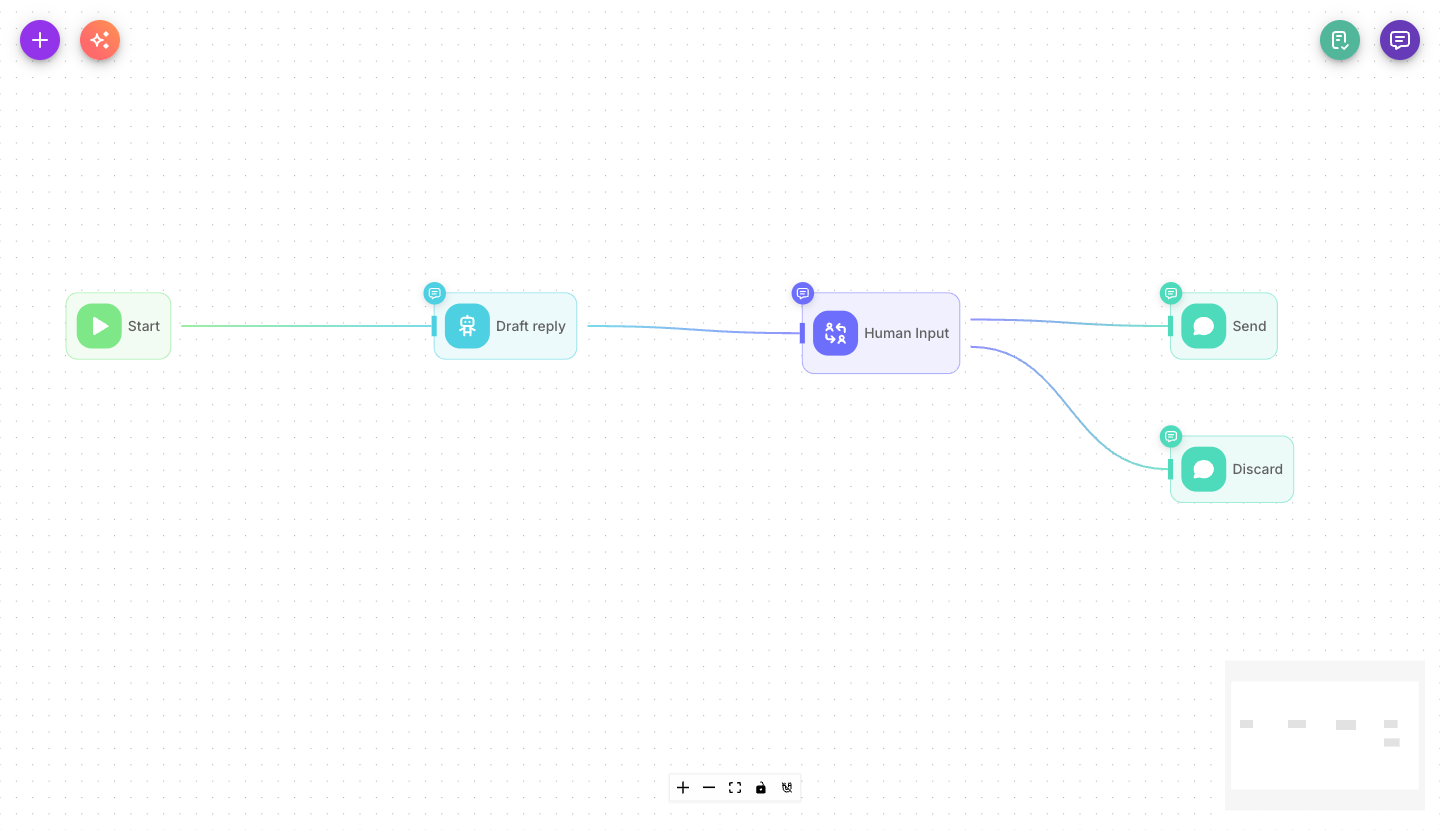
Add Human Input from the palette and place it at the point where the flow should stop and wait. Because it has two outputs, you connect a different path to each: one for approval, one for rejection.
Inputs
| Parameter | Description | Required |
|---|---|---|
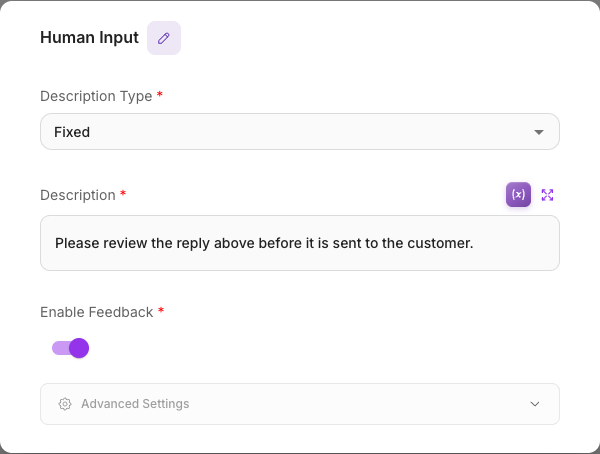
| Description Type | Fixed shows a message you write yourself; Dynamic uses a model to generate the approval message from the conversation. | Yes |
| Description | The exact message shown to the person when asking for approval. Shown when Description Type is Fixed. | Yes (for Fixed) |
| Model | The model used to write the approval message. Shown when Description Type is Dynamic. | Yes (for Dynamic) |
| Prompt | Instructions the model follows to generate the message. Shown when Description Type is Dynamic. | No |
| Enable Feedback | When on, the person can add a written note along with their approve/reject decision. | No (defaults to on) |
| Show Output in Chat | When on, the node's output appears in the chat transcript. When off, it stays hidden but is still available to connected nodes. | No (defaults to on) |
Outputs & branching
Human Input is a multi-output node with two branches. Exactly one is followed based on the person's decision:
- Proceed — followed when the person approves. Connect the path that carries on with the action.
- Reject — followed when the person declines. Connect the path that cancels, apologizes, or routes elsewhere.
Wire up both branches. If you only connect Proceed, a rejection has nowhere to go; if you only connect Reject, an approval leads nowhere.
Example
Confirming before a refund is issued:
- An Agent determines a refund is being requested.
- Human Input (Fixed) asks an operator: "Approve this refund of $40?"
- Proceed → an HTTP node issues the refund and a Direct Reply confirms it.
- Reject → a Direct Reply tells the customer the request needs manual review.
Tips
Use Fixed descriptions for simple, predictable approvals ("Send this email?"). Use Dynamic when the message should summarize a longer conversation before asking.
Always connect both the Proceed and Reject branches. An unconnected branch leaves that outcome with no next step.
Leave Enable Feedback on when you want the reviewer to explain their decision — the note travels into the flow and can be shown or logged.