Tool Node
The Tool node runs one specific action against an external system — send a WhatsApp message, add a row to Google Sheets, create a Zoho CRM record, call an API, and more. Unlike the Agent node (which decides when to use a tool on its own), the Tool node runs the action you choose, every time the flow reaches it, with the inputs you map.
Adding it to a flow
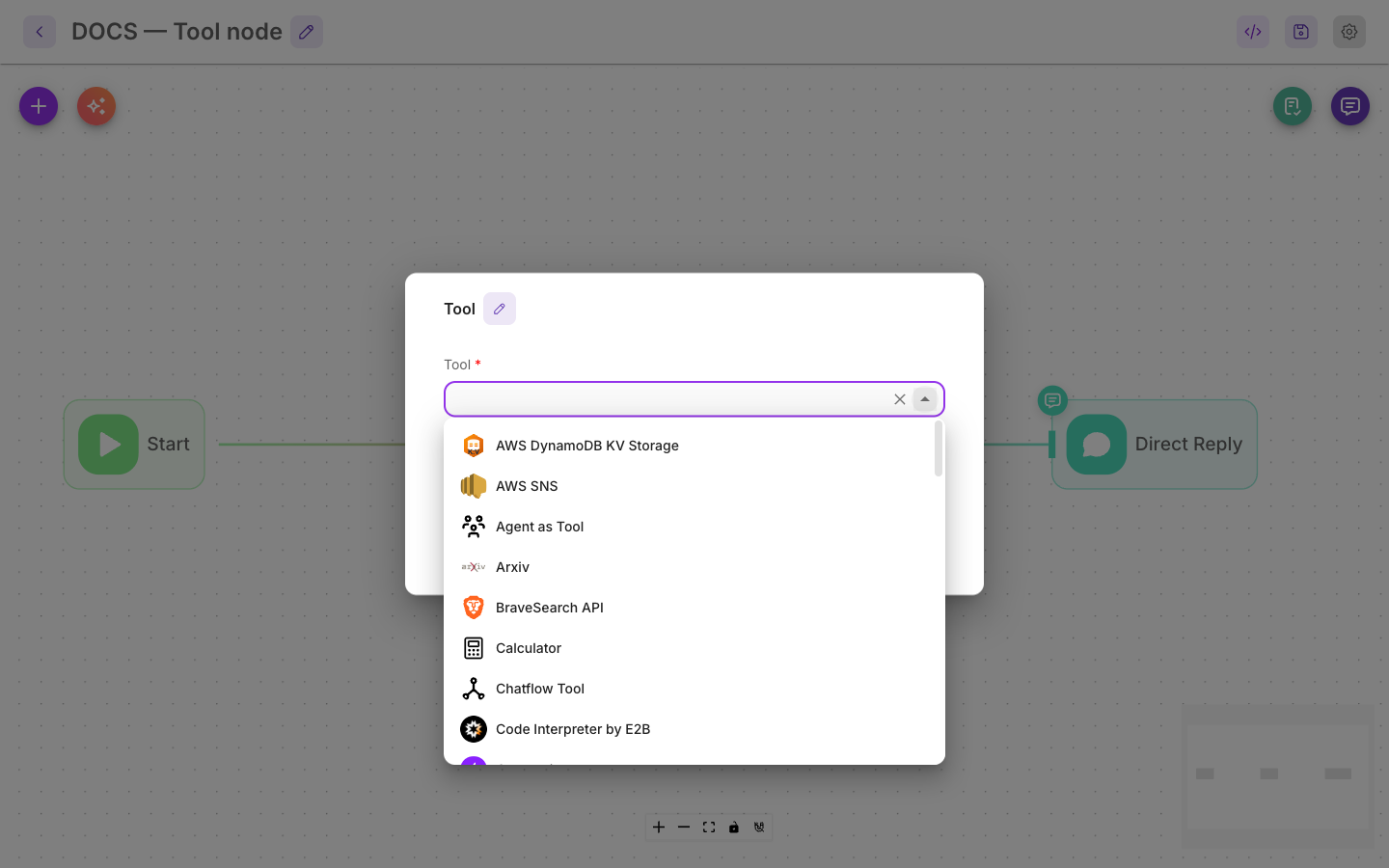
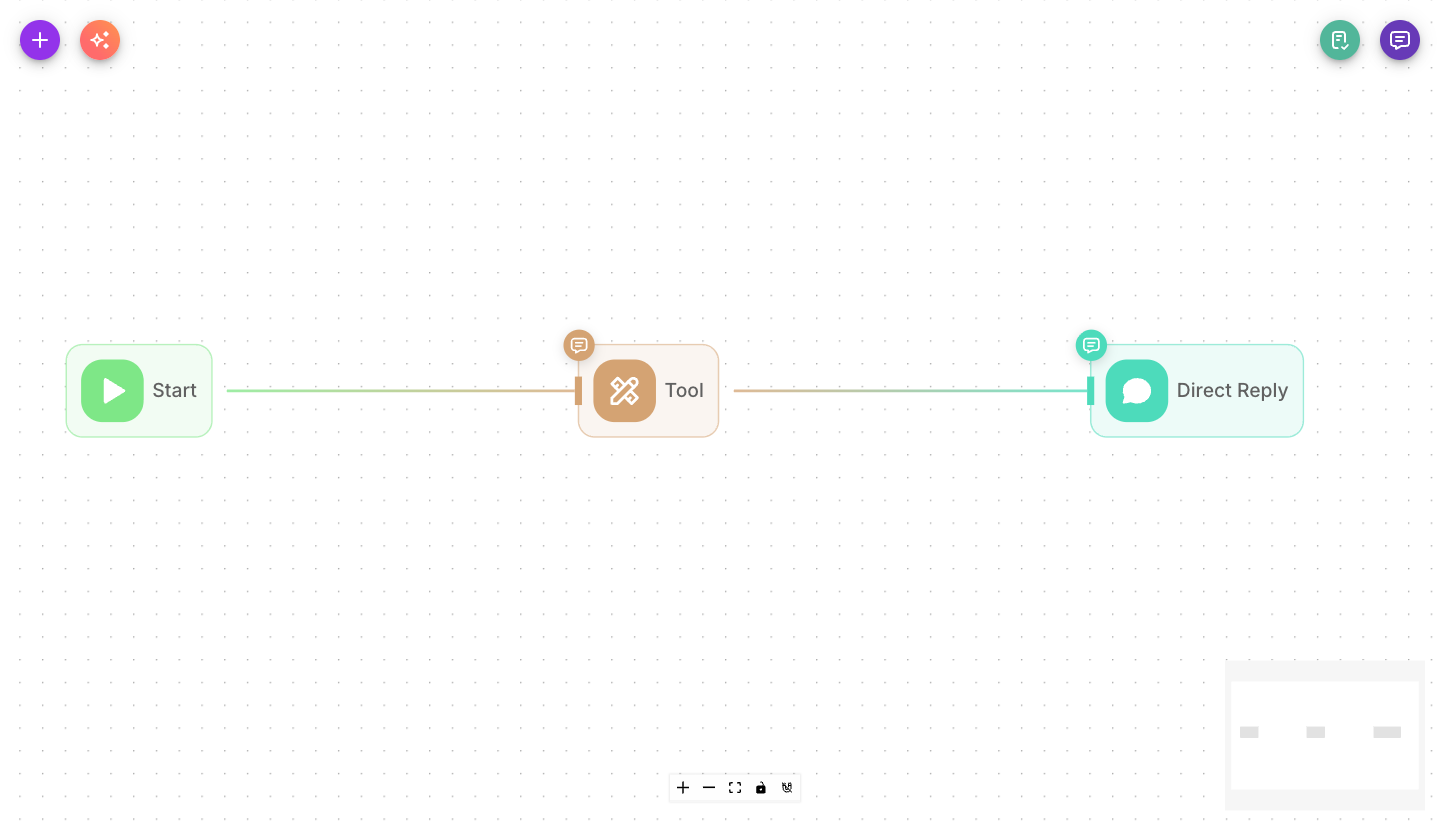
Drag a Tool node onto the canvas and connect the previous node to it. Pick a tool from the dropdown, connect its credential if it needs one, and map the input arguments.
Inputs
| Parameter | Description | Required |
|---|---|---|
| Tool | The action to run, chosen from the tool catalog (Google Sheets, WhatsApp, Zoho CRM, HTTP Request, and many more). | Yes |
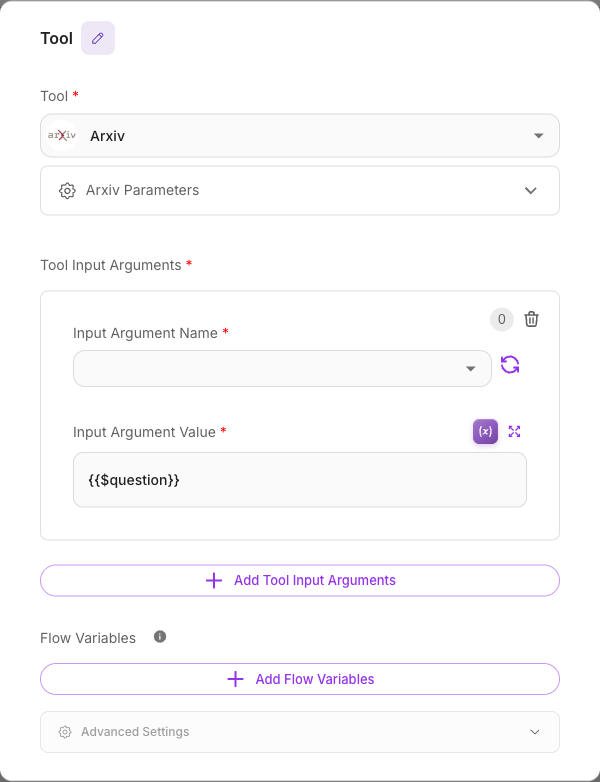
| Tool Input Arguments | The values the tool needs, mapped to each argument. Each row is an argument name plus a value, which can be a variable like {{$flow.state.email}}. The available argument names depend on the tool you picked. | Depends on tool |
| Flow Variables | State keys this node updates after it runs — for example, storing the tool's result for a later node. Each has a value and an optional "block empty updates" guard. | No |
| Show Output in Chat | Whether this node's output appears in the chat history. On by default. | No |
Outputs
The Tool node has a single output. Whatever the tool returns flows to the next connected node and is available downstream — you can also capture it into a Flow Variable to reuse later.
Selecting a tool
The Tool dropdown lists every tool available in your workspace. Once you pick one, the node reveals that tool's specific settings and argument names. Some tools work on their own (like a calculator or date/time helper); most connect to an outside service and need a credential.
Browse the full list of available tools, grouped by category, in the Tools catalog. Priority tools have their own detailed pages, including WhatsApp, Instagram, Zoho CRM, Google Sheets, HTTP Requests, Custom Tool, and MCP.
Argument mapping
Most tools need input to do their job — the phone number to message, the row to write, the record fields to set. In Tool Input Arguments, each row pairs an argument name (offered by the tool) with a value. Values can be:
- fixed text you type,
- a variable such as
{{$question}},{{$flow.state.name}}, or a webhook field, or - a mix of both.
This is how you feed live conversation data into the action the tool performs.
Arguments that are not plain text
Most arguments take plain text, but some expect a list or a structured value. The argument name tells you which: when a type is shown in brackets, the value must be written as JSON.
| Argument name in the dropdown | What the value must look like |
|---|---|
bodyText | Merhaba — plain text |
buttons (array<{id, title}>) | [{"id":"btn_yes","title":"Yes"},{"id":"btn_no","title":"No"}] |
sections (array<{title, rows}>) | [{"title":"Menu","rows":[{"id":"r1","title":"Pizza"}]}] — rows is a nested list |
previewUrl (boolean) | true or false |
The dropdown also shows an example under each argument that needs one. A value starting with [ or
{ is parsed as JSON before the tool runs, so a variable works too — as long as what it resolves to
has the same shape (an LLM node with structured output, for example).
If the shape is wrong, the node stops with a message naming the argument, what it expected, and an
example to copy — for instance "buttons": Expected array, but received string followed by
Expected shape: array<{id, title}> — e.g. [{"id":"...","title":"..."}].
Credentials
Tools that reach an external service need a credential — the connection that authorizes Flowera to act on your behalf (a WhatsApp account, a Zoho connection, a Google account, an API key). You select or create the credential when you configure the tool. If the dropdown is empty, connect the account first (from Integrations or the tool's own connect button), then return to the node.
Example
Add a captured lead to a spreadsheet:
- Tool: Google Sheets (append row)
- Tool Input Arguments: map the sheet's columns —
name→{{$flow.state.name}},email→{{$flow.state.email}} - Flow Variables: store a
savedflag astruefor a later confirmation message
Tips
- If the argument list looks empty, make sure you've selected a tool first and connected its credential — the argument names load from the chosen tool.
- Use the Tool node when you want an action to run reliably at a fixed point in the flow. Attach tools to an Agent node instead when you want the AI to decide whether to call them.
- Capture important results into Flow Variables so later nodes can use them.
Related
- Tools catalog
- Agent node — let the AI choose tools
- HTTP node — call any API directly without a prebuilt tool
- Flow state