View Messages
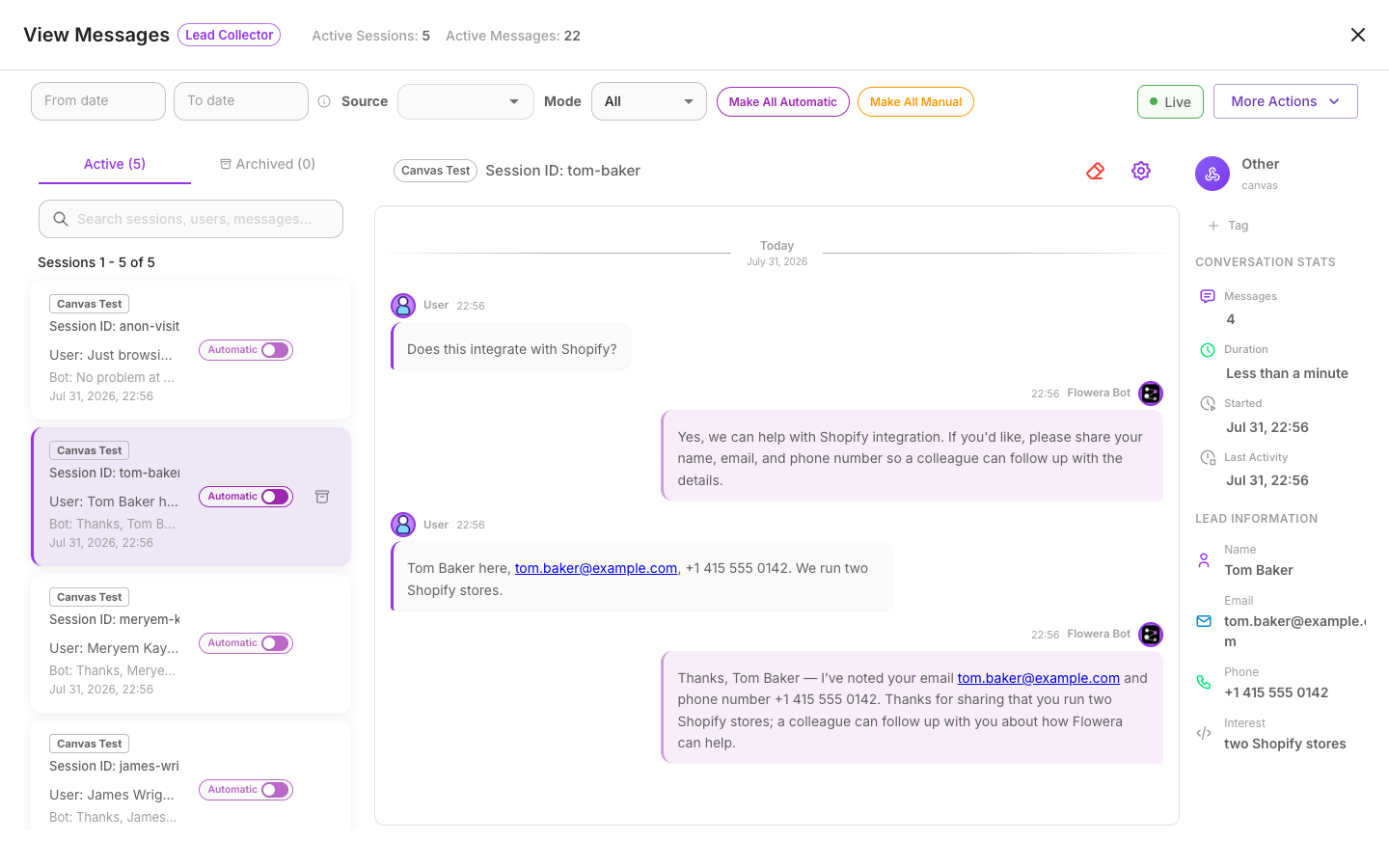
View Messages is your live inbox for a flow. It shows every conversation the flow has had — across the chat widget, Instagram, WhatsApp, the API, and any custom webhook — so you can read message history, search across sessions, watch new replies arrive in real time, and step in yourself when needed.
Open it from the View Messages button in the flow's canvas header (or from the assistant preview page).
The layout
View Messages has two panes side by side:
- Session list (left) — one row per conversation, newest activity first, with a preview of the last few messages, a platform icon, and a timestamp.
- Message thread (right) — the full conversation for the session you selected. Customer messages and bot replies are styled as distinct chat bubbles.
New messages appear on their own as they come in — you don't need to refresh. A small indicator shows when other teammates are viewing the same flow.
Reading a conversation
Click any session to open its thread. The most recent messages load first; scroll up to pull in older messages automatically. Long conversations load in batches so even a session with thousands of messages opens quickly.
Customer messages vs. operator messages
A single thread can contain three kinds of messages:
- Customer messages — what the person on the other end sent.
- Bot replies — what the AI answered.
- Operator messages — replies a human teammate sent, either from this panel or, for Instagram, directly from the native Instagram app.
Operator messages are recorded in the transcript alongside everything else, so the history stays complete no matter where the reply came from. See Manual mode for how a human takes over a conversation.
Media in the thread
When a customer sends photos, videos, audio, or files — or when the bot sends media back — those attachments render right inside the thread as a thumbnail grid. Click any thumbnail to open a full-screen viewer that lets you:
- Step through every media item in the whole conversation with the arrows or arrow keys.
- Zoom in on an image.
- Download a single item at full resolution.
- Download all the session's media at once as a ZIP.
Thumbnails load as small, fast previews; downloads always give you the original file.
The session list
Each session card shows the channel it came from, a short preview, and when it last had activity. The header shows how many sessions there are and lets you page through them when there are more than fit on one screen.
Sessions are grouped by the channel that created them — for example Widget, Instagram, WhatsApp, Canvas (your test chat), API, or the name of a custom webhook.
Filtering and searching
A filter row above the session list helps you find the right conversations fast:
| Filter | What it does |
|---|---|
| Source | Show only sessions from one channel (Widget, Instagram, WhatsApp, and so on). |
| Date range | Limit to sessions within a start date, an end date, or both. |
| Search | Full-text search across message content, session ID, source, and lead name / email / phone / Instagram username. Type at least 2 characters. |
| Mode | Show all sessions, only AI-handled ones, or only ones in manual mode. |
| Feedback | Filter by thumbs-up / thumbs-down ratings customers left. |
| Labels | Show only sessions tagged with specific session labels — matching any of them or all of them. |
Combine filters to narrow in quickly. For example, pick Instagram as the source and add a search term to find one customer's DMs among thousands of sessions.
If a very broad search matches a huge number of sessions, Flowera shows a "Showing partial results — try a more specific search" note. Add a date range, a source, or a longer search term to narrow it down.
Session info
When you open a session, an info card summarizes it: the channel, total message count, how long the conversation has lasted, when it started, when it was last active, and the lead's details. If the flow has captured extra details about the customer (custom fields), those show here too. See View Leads for the full lead record.
Stepping in yourself
Next to each session is a switch to turn on manual mode — this pauses the AI and lets you reply to the customer by hand. Manual replies are limited to 1000 characters each (a live counter shows what's left); send several messages for longer answers. Manual mode is covered in full on the Manual mode page.
On mobile
On a phone, View Messages switches to a full-screen, DM-style layout with three screens you move between: Session List → Chat → Info. The filters open from a bottom sheet, and a pill-shaped input at the bottom lets you send manual replies. Everything you can do on desktop is available on mobile.
Troubleshooting
- A session's thread looks empty. Some internal messages are hidden from the conversation view. If a session has only internal messages, its thread appears blank.
- An image or audio file won't open. Chat files are only viewable by members of the workspace that owns the flow. Open View Messages from a flow in a workspace you belong to.
- Older media is text-only. Attachments the bot sent before mid-2026 weren't stored for display, so those historical messages show text without the media. New runs display attachments automatically.
Related
- View Leads — the leads captured from these conversations
- Manual mode — take over a conversation from the AI
- Session labels — tag and triage conversations
- Executions — the behind-the-scenes trace of each run