Session Labels
Session labels are colored tags you attach to conversations — like VIP, Hot Lead, or Refund Pending — so a busy inbox can be triaged at a glance. You can apply labels by hand, or set up auto-label rules that tag conversations automatically based on what your flow captures. Labels also work as filters in View Messages and View Leads, and your flow can even branch on them.
Labels are defined per flow — each flow has its own set of labels.
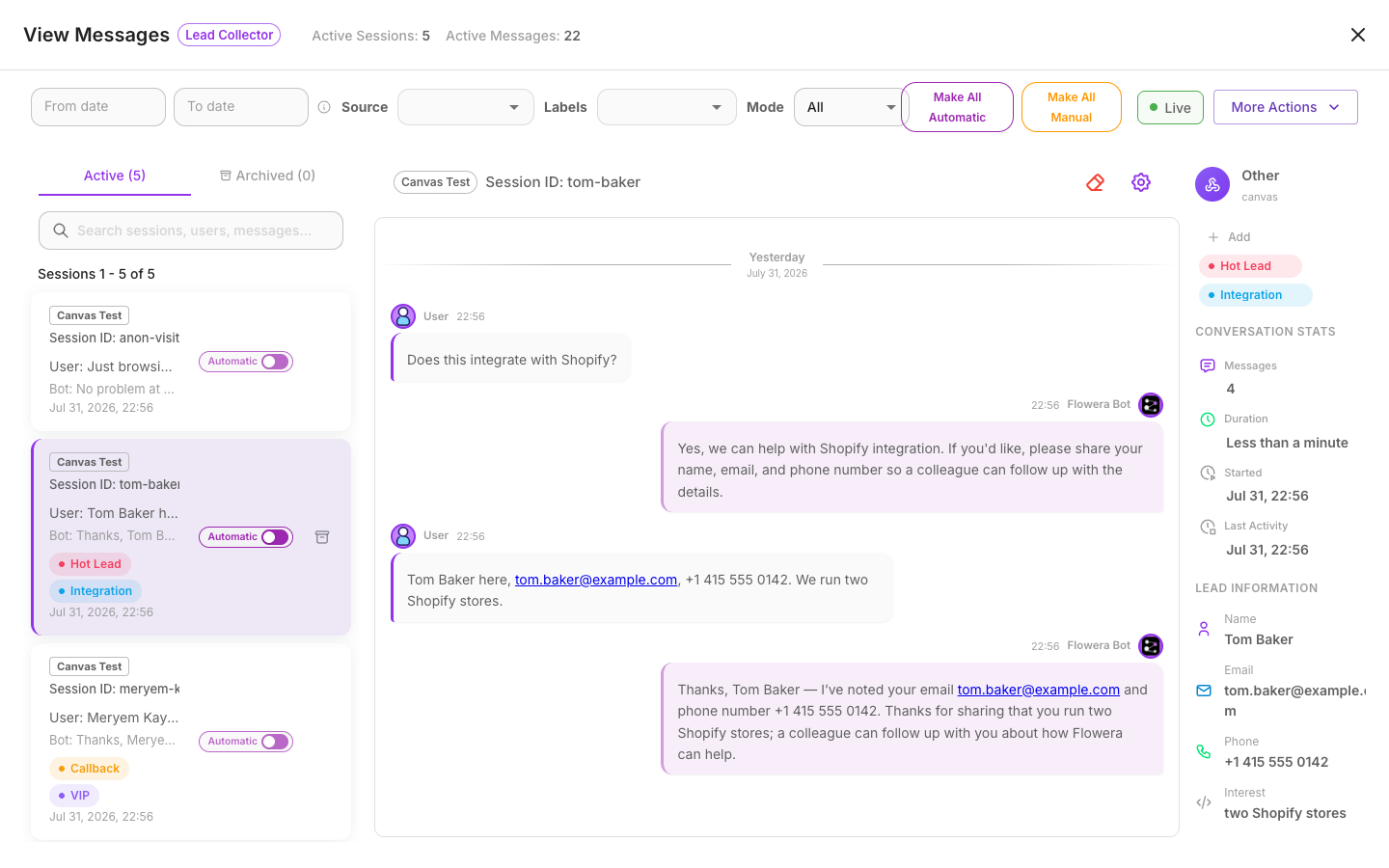
Labeling a conversation by hand
- Open View Messages and select a conversation.
- Click + Tag in the session info card.
- Pick one or more labels from the list — or type a new name to create a label on the spot.
The labels appear on the conversation immediately, and any teammates viewing the same flow see the change right away.
Auto-labeling from flow state
Instead of tagging by hand, you can have Flowera label conversations for you. An auto-label rule watches one flow state value and applies a label whenever that value is filled in.
For example, suppose your flow captures a plan value. A rule on plan will:
- Read the value at the end of each run (say,
Premium). - Create a label named after that value (Premium) if it doesn't exist yet, using the rule's color.
- Apply that label to the conversation.
A few things worth knowing:
- Only single values (text, numbers) become labels. If the captured value is a list or an object, it is skipped — nothing gets labeled. Empty values are skipped too.
- Rules apply going forward only, from the next run onward. Saving a rule does not touch existing conversations. To label conversations that already match, click Apply to all sessions on the rule (see below) — this is a manual step, there is no automatic backfill.
- Manual tags and auto-labels coexist — a rule never removes a label you added by hand.
Labeling existing conversations
Saving a rule only affects future runs. To apply it to conversations that already happened, open the rule and click Apply to all sessions. This runs a one-off backfill in the background — a progress indicator shows how far along it is and lets you cancel. You do this once per rule, whenever you want history caught up.
Filtering by label
In View Messages and View Leads, filter by one or more labels with two modes:
- Any — show conversations that have at least one of the selected labels.
- All — show only conversations that have every selected label.
This makes it easy to pull up, say, every VIP and Refund Pending conversation at once.
Branching on labels inside a flow
The labels on a conversation are available to your flow as {{$flow.state.sessionLabels}}, so you can route based on them. For instance, a Condition node can check whether sessionLabels contains VIP and send those conversations down a priority path.
sessionLabels is a reserved, Flowera-managed value. Don't create your own flow state variable named sessionLabels — the system manages that key, and a variable with the same name will be overwritten.
Tag everything at once
From the label picker you can Tag all — apply a label to every conversation in the flow in one go. Large tagging jobs (and rule backfills) run in the background; a progress indicator shows how far along they are and lets you cancel mid-run.
Tips and gotchas
- Label names must be distinct enough not to overlap. You can't have both
LeadandLeader, because one name contains the other and acontainscheck in a Condition node would match both. Rename one so neither is a substring of the other. - An auto-label rule didn't fire. Rules only evaluate when a run finishes cleanly. Confirm the state value actually has a printable value, and that the rule's variable name matches your state key exactly (it's case-sensitive).
- A rule you just saved didn't touch older conversations. That's expected — saving a rule only labels future runs. Click Apply to all sessions on the rule to backfill existing conversations; there is no automatic backfill on save.
Related
- View Messages — apply and filter labels here
- View Leads — filter leads by label
- Flow state — the values auto-label rules read from
- Condition — branch on
sessionLabels