View Leads
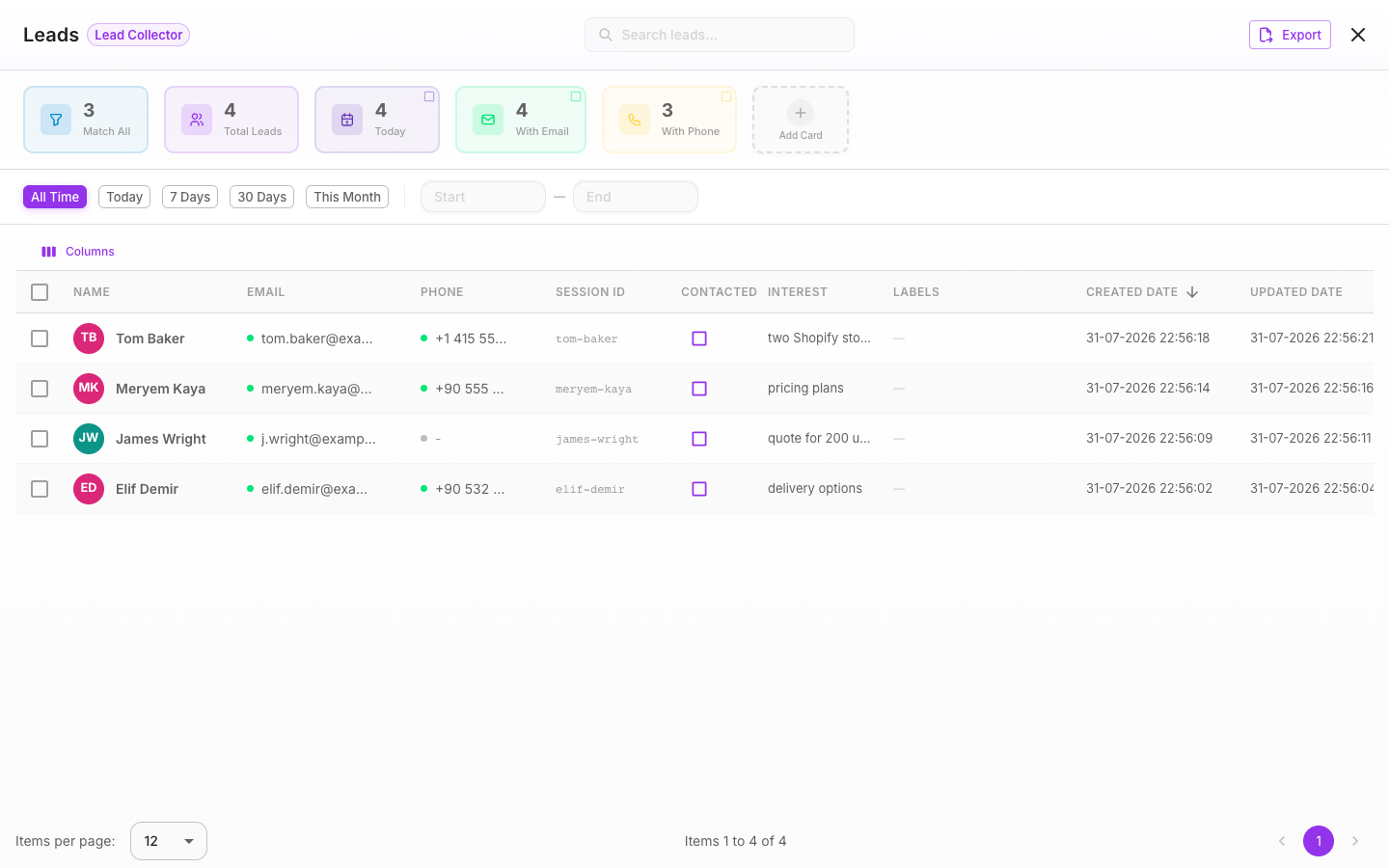
View Leads is the CRM-style panel where every lead your flow collects lands automatically. Browse them in a sortable grid, search and filter, see at-a-glance stats, mark leads as contacted, add notes, and export the whole list to Excel or CSV.
Open it from the View Leads button in the flow's canvas header.
Where leads come from
You don't add leads by hand — they're created from your flow's flow state. Whenever a conversation updates its state (for example, after the bot asks for and captures a name), Flowera saves those details to a lead record. There's exactly one lead per conversation, updated as the conversation goes on.
How each state value shows up here depends on its name:
- State keys named
name,email, orphone(any capitalization) map to the lead's built-in Name, Email, and Phone columns. - Every other detail you capture — like
company,city, orplan— becomes a custom field on the lead and appears as its own column and stat card. - A handful of internal, system-managed values are never written as custom fields (things the flow uses under the hood, such as the raw question, uploads, chat history, and session labels).
So if you want a captured value to land in the built-in Name / Email / Phone columns, name the state key exactly name, email, or phone. Anything else you name becomes a custom field. The Lead collector bot tutorial walks through building this end to end.
Custom fields need no setup. The moment a flow captures a new detail — say city — a city column and a city stat card appear here automatically.
The data grid
Leads appear in a sortable grid with columns for Name (with an avatar), Email, Phone, any custom fields, Session ID, and Created date. Click a column header to sort by it; the grid defaults to newest first. Only the current page loads at a time, so large lead lists stay fast.
Column visibility
A settings control lets you show or hide individual columns to keep the grid focused. Note that exports always include every field, regardless of which columns are hidden.
Stat cards
Cards across the top give you a running count of your leads and double as one-click filters. Built-in cards include:
| Card | Shows |
|---|---|
| Total Leads | Every lead for this flow |
| Today | Leads created today (in your timezone) |
| With Email | Leads that have an email |
| With Phone | Leads that have a phone number |
| Contacted | Leads you've marked as contacted |
| This Week | Leads created this week |
| This Month | Leads created this month |
Custom-field stat cards
Every custom field your flow captures gets its own stat card too — for example a company card counting how many leads have a company recorded. A settings gear lets you choose which cards are visible; your choice is remembered per flow.
Clicking a stat card filters the grid to just those leads. Click several cards to combine them — With Email plus This Week shows this week's leads that have an email.

Search and date filters
- Search — a search box matches across name, email, phone, and session ID. Type at least 3 characters for the best matching.
- Date presets — quick buttons for All Time, Today, 7 Days, 30 Days, and This Month, plus a Custom range picker. Dates use your local timezone.
Contacted toggle
Each lead has a Contacted checkbox (a toggle on mobile). Flip it to track who you've followed up with. The change saves instantly, and the Contacted stat card counts them for you.
Notes
Every lead has a Notes field (up to 500 characters) for context like "Called April 4, interested in premium plan." Notes save automatically when you click away from the field.
Lead detail drawer
Click any row to open a side drawer with the lead's full details. Every field has a copy button for quick pasting elsewhere, and the drawer includes the contacted toggle and the notes field.
Export
The Export button downloads your leads as either:
- Excel (
.xlsx) - CSV (
.csv)
Both include all available fields — standard and custom — for whatever set of leads your current filters produce.
On mobile
On a phone, the grid becomes a list of tappable lead cards showing an avatar, name, contact preview, channel, and a relative timestamp. Tapping a card opens a full-screen profile with quick actions (Call, Email, Copy, Share), custom fields, the contacted toggle, notes, and a timeline. Filters open from a bottom sheet, and you can pull down to refresh.
Troubleshooting
- "Today" or "This Week" counts look off. These are computed in your browser's timezone. If they seem wrong, confirm your device's timezone is set correctly.
- A custom-field card isn't showing. It only appears once at least one lead has that field filled in.
- Search finds nothing for a partial term. Enter at least 3 characters — very short fragments don't match reliably.
- An export came out empty. Every column may be hidden, or the current filters return zero leads. Show at least one column and loosen the filters.
Related
- Flow state — how captured details are stored and named
- Lead collector bot — build a flow that fills these columns
- View Messages — the conversations behind each lead
- Session labels — tag and filter leads by label