Variables Reference
Variables let you pull live data into your flow — the user's message, a previous node's output, a webhook payload, and more. Almost every text field in the editor accepts them. This page is the complete reference.
{{ }} and $ — the two pieces of syntax
There are two things to keep straight:
{{ }}wraps a variable so Flowera knows to replace it with a real value at run time. Anything inside the double curly braces is treated as an expression.$prefixes the runtime values that live inside those braces —$question,$flow.state.name,$vars.companyName, and so on.
So you almost always write them together:
{{$question}}
{{$flow.state.name}}
{{$vars.companyName}}
Node outputs are the exception — they're referenced by the node's label, without a $:
{{ Sales Agent }}
A variable only works when it's inserted from the palette or picked from the {{ dropdown — that's what turns it into a proper reference. If you type {{$question}} by hand as plain text, it may show up literally in your output instead of resolving. When in doubt, delete it and re-insert from the palette.
Two ways to insert a variable
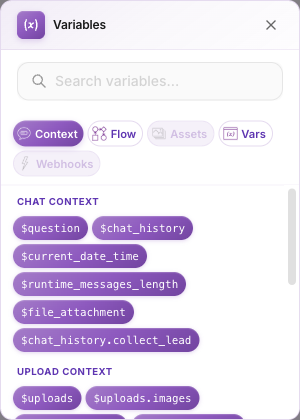
The variable palette — a panel listing every available variable, grouped by category, with a search box.
- Click any variable-accepting field, or the purple
{x}icon next to its label, to open it. - On mobile, tap the
{x}button; the palette slides up from the bottom.
Inline {{ suggestions — type {{ directly in a field and an autocomplete dropdown appears with matching variables. Keep typing to filter.
Both read from the same list, so they always stay in sync.
The eight categories
1. Chat Context
Data about the current message and the conversation.
| Variable | Description |
|---|---|
$question | The user's message from the chatbox or API |
$chat_history | Past conversation between the user and the AI |
$current_date_time | The current date and time |
$runtime_messages_length | Total messages exchanged between the LLM and Agent |
$file_attachment | Files uploaded from the chat |
A per-node history variant, $chat_history.<node_name>, gives you the history for a single LLM/Agent node (the node label lowercased with spaces turned into underscores — "Sales Agent" becomes $chat_history.sales_agent).
2. Upload Context
Media files sent this turn. See Uploads and assets for the complete list.
| Variable | Description |
|---|---|
$uploads | The full uploads object (as JSON) |
$uploads.images | Array of uploaded images |
$uploads.videos | Array of uploaded videos |
$uploads.audios | Array of uploaded audio files |
$uploads.all | All uploaded files |
$uploads.audios.firstTranscript | First audio transcript (if speech-to-text is enabled) |
$uploads.audios.combinedTranscript | All audio transcripts combined |
$uploads.audios.hasTranscripts | true if any audio has a transcript |
$uploads.audios.transcriptCount | Number of audios with transcripts |
$uploads.audios[0].transcript | Transcript of the first audio |
$uploads.audios[0].name | Filename of the first audio |
$uploads.images[0].name | Filename of the first image |
$uploads.videos[0].name | Filename of the first video |
3. Flow Variables
Context about the current run — who, where, and how it was triggered.
| Variable | Description |
|---|---|
$flow.sessionId | The current session ID |
$flow.chatId | The current chat ID |
$flow.chatflowId | The current flow's ID |
$flow.source | Trigger source: a webhook name, "api", or "ui" |
$flow.manual.is_manual_mode | true when the session is in manual mode (AI paused) |
$flow.manual.is_manual_message | true when the current message is from an operator |
$flow.manual.from | Where an operator message came from: "panel" (Flowera UI) or "instagram" (native app); empty for customer messages |
$flow.scheduledRunId | ID of the parent scheduled automation (only set on scheduled runs) |
$flow.fireHistoryId | ID of this specific schedule tick (only set on scheduled runs) |
$flow.scheduleName | Name of the scheduled automation — branch on this when one flow serves several schedules |
$flow.triggerType | How the flow was triggered: "chatInput", "webhookInput", or "schedule" |
The schedule variables resolve to nothing on non-scheduled runs, so they're safe to reference anywhere. See Manual mode for the $flow.manual.* values.
4. Flow State
Named values you define and update as the flow runs. Read any state key with:
{{$flow.state.<key>}}
State keys are dynamic — you create them on the Start node and update them with nodes during the run. One reserved key, $flow.state.sessionLabels, is managed by Flowera (see Session labels). For the full picture of how state works and how it feeds your Leads, see Flow state.
5. Custom Variables ($vars)
Workspace-level values you manage once and reuse across every flow:
{{$vars.companyName}}
{{$vars.supportEmail}}
Great for things like your company name, a support address, or an API base URL. See Custom variables.
6. Node Outputs
Every node produces an output that later nodes can reference by the node's label — the label on its own is the whole reference, and it gives you the node's text result:
{{ Sales Agent }}
Only nodes that run before the current one are offered in the palette. When a node has structured output, each field also shows up as its own variable ({{ LLM 0.email }}).
.output.content to a label{{ Sales Agent.output.content }} resolves to nothing — the .output. form is matched against a node's internal id, never its label, so the raw text is sent to the customer. The label alone ({{ Sales Agent }}) already returns the text content.
7. Iteration
Available inside an Iteration loop:
| Variable | Description |
|---|---|
$iteration | The current item being looped over. For JSON items, use dot notation: $iteration.name |
8. Assets
Files from your workspace's asset library (logos, documents, product images). Only public assets appear.
| Variable | Description |
|---|---|
$assets.<name>.url | Public URL of the named asset |
$assets.all | All public assets as an array |
See Uploads and assets.
Webhook payload variables
When a flow is triggered by a webhook, the incoming data is available under the webhook's name:
{{$webhook.<webhookName>.<field>}}
For custom webhooks, any field in the payload is reachable directly with dot and bracket notation ($webhook.crm.customer.orders[0].id), plus $webhook.<name>.payload.raw and $webhook.<name>.payload.parsed. Direct field access requires an Example Payload in the webhook config so the palette knows the field names. See Custom webhook.
The channel triggers add a fixed set of ready-made fields — no payload mapping needed.
Instagram
| Field | Description |
|---|---|
eventType | message · comment · mention · story_reply |
senderId | Sender's Instagram user ID |
senderUsername | Sender's Instagram @username |
senderName | Sender's display name |
recipientId | Your Instagram account ID |
commentId | Comment ID (for replying to comments) |
mediaId | Media ID (post/reel context) |
postCaption | Caption of the Instagram post (for comments) |
postPermalink | Permanent link to the post |
timestamp | Message timestamp |
mediaUrl | Media attachment URL, if any |
mediaType | image · video · audio |
Example: {{$webhook.instagram-dm.senderUsername}}. See Instagram trigger.
WhatsApp
| Field | Description |
|---|---|
eventType | Message type: text · image · video · audio · document · sticker · location · contacts · button · interactive · nfm_reply · reaction · order |
senderId | Who to reply to: the sender's phone number (international format), or their WhatsApp user ID (e.g. TR.3481842478637318) when they hide their number behind a username |
senderUserId | Sender's WhatsApp user ID — present whether or not the number is hidden |
senderUsername | Sender's WhatsApp username (empty if they have none) |
senderName | Sender's WhatsApp profile name |
senderPhone | Sender's phone number whenever it is known — also when senderId is their WhatsApp user ID. Empty while the customer has never shown their number |
recipientPhoneNumberId | Your WhatsApp Business number ID |
timestamp | Message timestamp |
messageId | Unique message ID |
mediaUrl | Media attachment URL, if any |
mediaId | Media ID (for downloading media) |
mimeType | Media MIME type (e.g. image/jpeg) |
caption | Media caption, if any |
location | Location object (latitude, longitude, name, address) |
buttonPayload | Button payload (button replies) |
listReplyId | List reply ID (interactive list replies) |
reactionEmoji | Reaction emoji (message reactions) |
formResponse | Parsed WhatsApp Flow form submission — the customer's answers only (the flow token is stripped out into flowToken) |
formResponseText | The same answers as a readable label: value summary, ready to put in a message or a prompt |
flowToken | WhatsApp Flow token returned with the form submission |
flowChatflowId | The agentflow the Flow was sent from, recovered from the signed flow token — use it to route or disambiguate completions |
order | Submitted cart, when eventType is order: { items, total, currency, itemCount, catalogId, note } |
order.total | Order total — the sum of every line item |
order.currency | Order currency (e.g. TRY, USD) |
order.itemCount | Number of distinct products in the order |
order.items | Line items: [{ sku, quantity, unitPrice, lineTotal, currency }] |
order.note | Free text the customer attached when sending the cart |
referredProduct | Product the customer was viewing when they messaged in, from a product card: { catalogId, sku }. Set on any message type, not just orders |
referredProduct.sku | SKU of the product the customer was viewing |
Example: {{$webhook.whatsapp-support.eventType}}. See WhatsApp trigger.
Zoho CRM
| Field | Description |
|---|---|
module | The Zoho module the event fired on (e.g. Leads, Deals) |
operation | create · edit · delete |
ids | Array of affected record IDs |
serverTime | Zoho server timestamp of the event |
affectedFields | Field names changed (edit events only) |
record | Full record data (auto-fetched for small, non-delete events) |
Example: {{$webhook.zoho-leads.module}}. See Zoho trigger.
The {{$question}} footgun in Condition Agent
The Condition Agent node routes a message down scenario branches, and its input must reference the user's message as {{$question}} — with the dollar sign.
Inside a Condition Agent, {{$question}} resolves to the user's message. The dollarless form {{question}} never resolves — the node ends up with no input and routing breaks. Always include the $.
Troubleshooting
A variable shows up as literal text in the output. It was typed by hand rather than inserted from the palette. Delete it and re-insert from the palette or the {{ dropdown.
A node's output isn't in the palette. That node runs after the one you're editing. Only upstream nodes are available. Check your connections.
A webhook variable stays literal ($webhook.name.field). For canvas testing, add an Example Payload to the webhook. Double-check the webhook name matches exactly, and that the flow was actually triggered by that webhook.