What Triggers a Flow
A flow doesn't run on its own — something has to trigger it. The Start node decides what that something is. The same flow can be triggered by different sources, and you configure which ones from the Start node.
This page is a map of your options. For step-by-step setup of each one, follow the links into the Start triggers section.
The trigger types
| Trigger | Runs the flow when… | Set up in |
|---|---|---|
| Chat | A customer sends a message in a chat widget or shared chatbot | Chat input |
| Custom webhook | An external system calls your flow's webhook URL | Custom webhook |
| A DM, comment, mention, or story reply arrives on your Instagram Business account | Instagram trigger | |
| A message arrives on your WhatsApp Business number | WhatsApp trigger | |
| Zoho CRM | A record is created, edited, or deleted in Zoho CRM | Zoho trigger |
| Scheduled | A timer fires on a schedule you set | Scheduled run |
| Batch | You run the flow across many records at once | Batch run |
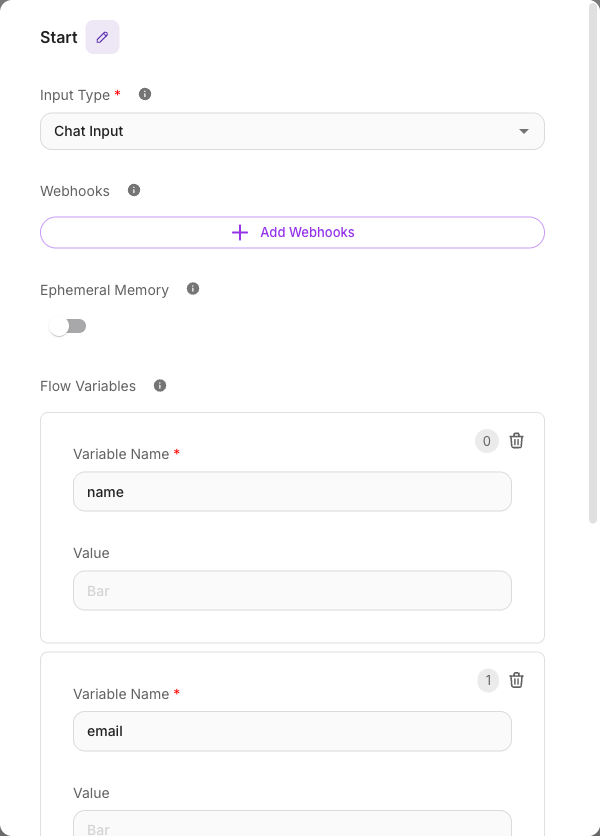
Chat triggers
The Start node's Input Type is Chat Input — the flow starts when a customer types a message. This is what the in-canvas chat test uses, and what powers your embedded and shared chatbots.
Webhook and channel triggers
For everything else, the Start node uses webhooks. A single Start node can hold several webhooks, so one flow can respond to more than one source.
- Custom webhook — a URL any external system can call. You choose how to verify incoming requests (a shared token, an HMAC signature, and more) so only trusted callers can trigger your flow.
- Instagram, WhatsApp, Zoho — pre-built channel webhooks. You pick a connected account, choose which events to listen for, and Flowera wires up the rest. Each one adds ready-made variables (like the sender's username or the Zoho record) that you can use in your flow.
The trigger pages here focus on building the trigger into your flow. Connecting the account itself (logging into Instagram/WhatsApp Business, authorizing Zoho) happens once in the Integrations area and is covered separately in the Channels docs. Once connected, the account appears in the trigger's dropdown.
Scheduled and batch triggers
- Scheduled run fires the flow on a timer — hourly, daily, or on a custom schedule. Useful for follow-ups, reports, and periodic checks.
- Batch run executes the flow across a list of records in one go — for example, sending a message to every lead in a list.
When a schedule fires a flow, extra context variables become available ({{$flow.scheduleName}}, {{$flow.scheduledRunId}}, and more) so you can tell which schedule triggered the run. See Variables.
Knowing how a flow was triggered
Inside any flow you can check how the current turn started:
{{$flow.source}}— the webhook name,"api", or"ui".{{$flow.triggerType}}—"chatInput","webhookInput", or"schedule".
This lets one flow behave differently depending on where the message came from. See Variables for the full list.