Uploads and Assets
Flowera handles two kinds of files, and it's worth knowing which is which:
- Uploads (
$uploads) — files a customer sends this turn: a photo in a chat, an image on Instagram, a voice note on WhatsApp. - Assets (
$assets) — files you keep in your workspace library and reuse across flows: logos, terms documents, product images.
This page explains how to use both in a flow. For uploading, organising, and setting visibility on assets, see Assets.
Uploads are per-conversation and temporary; assets are yours and permanent.
Uploads — media from the customer
Every flow can access an uploads variable holding whatever the customer sent this turn, grouped by type:
$uploads.images— images (png, jpg, webp, gif, heic…)$uploads.videos— videos (mp4, webm, mov…)$uploads.audios— audio (mp3, wav, m4a…)
These arrive automatically from the chat widget, Instagram, and WhatsApp — no setup. (For custom webhooks you map incoming file URLs to uploads.images / uploads.videos / uploads.audios in the Start node's payload mapping; see Custom webhook.)
$uploads holds only the media sent in the current message. A photo the customer sent earlier is not in $uploads on a later turn — it lives in the conversation history instead. This keeps each turn fast and avoids re-sending old files to the AI every message.
Sending images to the AI
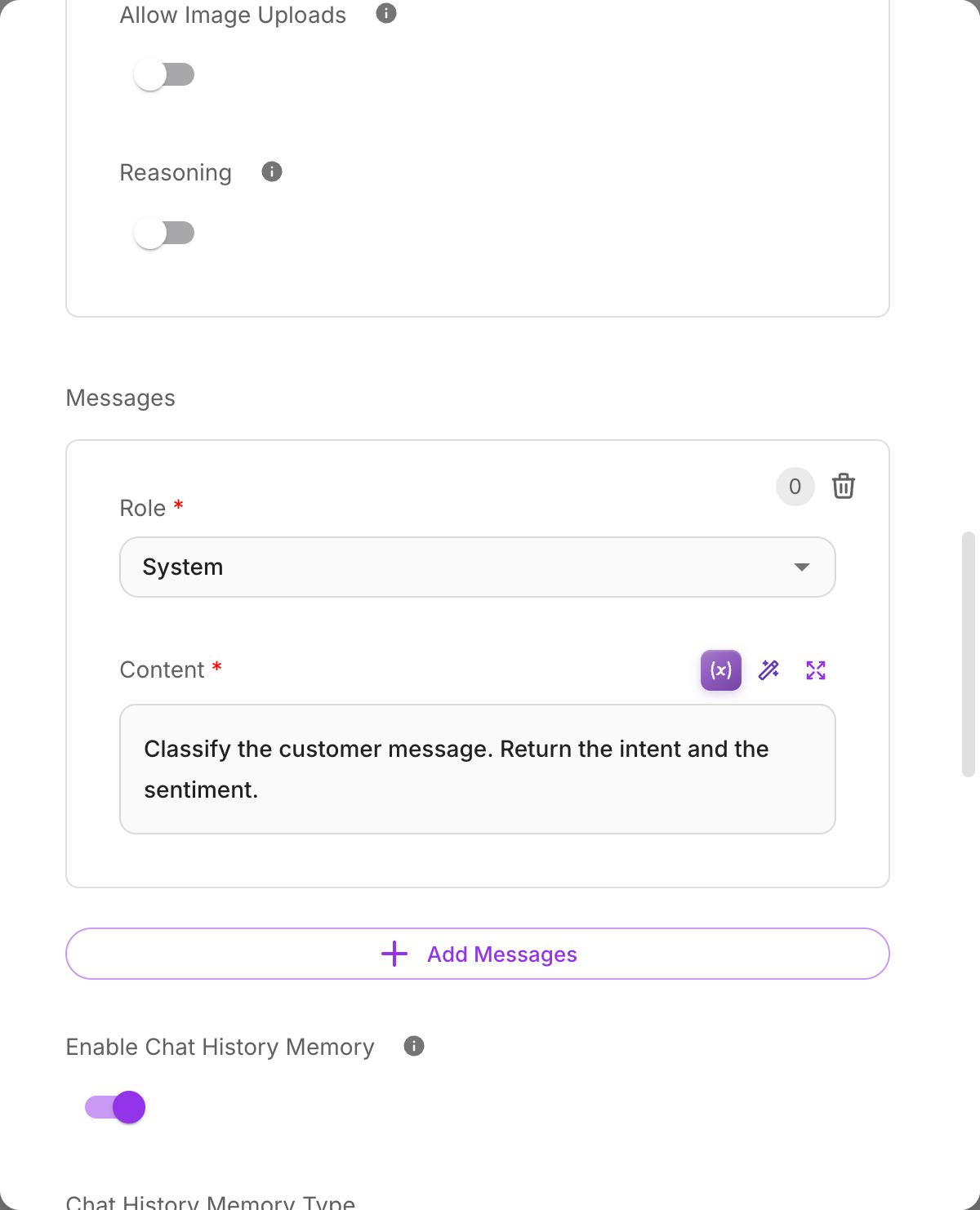
For an LLM or Agent node to actually see an image, turn on Allow Image Uploads in that node's model settings. Without it, images are ignored even when present. You can also set Image Resolution (low / high / auto) to trade quality against cost.
When several images arrive in one turn, enable Label Images so the AI can tell them apart — it tags each one Image 1:, Image 2:, and so on, so answers can point to a specific image. (With a single image it does nothing.)
Handy upload variables
| Variable | What it gives you |
|---|---|
$uploads.images / .videos / .audios | The arrays of files by type |
$uploads.all | Every uploaded file |
$uploads.hasImages / .hasVideos / .hasAudios | true if at least one of that type was sent |
$uploads.imageCount / .videoCount / .audioCount | How many of each |
$uploads.images[0].name | Filename of the first image |
$uploads.images[0].url | Original source URL (for webhook/social uploads) |
Reference any of these with {{ }} in a text field.
Audio transcripts
If speech-to-text is enabled in your flow settings, audio the customer sends is transcribed automatically, and the text becomes available:
| Variable | What it gives you |
|---|---|
$uploads.audios[0].transcript | Transcript of the first audio |
$uploads.audios.firstTranscript | The first available transcript |
$uploads.audios.combinedTranscript | All transcripts joined together |
$uploads.audios.hasTranscripts | true if any audio was transcribed |
$uploads.audios.transcriptCount | How many audios were transcribed |
A transcript lives only in $uploads — it is not appended to {{$question}}. To use it, reference it explicitly in a prompt, e.g. {{$uploads.audios[0].transcript}}. This gives you full control over where the transcribed text appears.
Assets — your workspace's file library
Assets are static files you upload once and reference from any flow — a logo, a terms-of-service document, a set of product images. Unlike uploads, they're always available and don't depend on what the customer sent.
Managing assets
Upload and manage assets on the Assets page (under Document Store). Each asset gets a public URL. Every asset has a visibility:
| Visibility | In the variable palette? | Usable in flows? |
|---|---|---|
| Public | Yes | Yes — via $assets.<name>.url |
| Private | Hidden | No — make it public first |
Only public assets are deliverable at run time, and only they show up in the palette. Point a flow at
a private one anyway — by typing the name rather than picking it — and $assets.<name>.url still
produces a URL, but the public address refuses it: the flow runs, the message sends, and the file
simply is not attached. Nothing in the run says why, so check the asset's visibility first.
Using assets in a flow
Open the variable palette, switch to the Assets tab (it has search across your library), and click an asset to insert it:
| Variable | What it gives you |
|---|---|
$assets.<name>.url | The public URL of that asset |
$assets.all | All public assets as an array |
The <name> is the asset's sanitized name (lowercase, no spaces); the palette shows the original filename and size so you can tell them apart.
Example — reference your logo and terms document in a prompt:
You are a support agent for our company.
Our logo:  {{ $assets.company_logo.url }}
Refund policy document: {{ $assets.terms_of_service.url }}
Uploads vs. assets at a glance
Uploads ($uploads) | Assets ($assets) | |
|---|---|---|
| Comes from | The customer, this turn | Your workspace library |
| Lifetime | Just the current turn | Permanent until you remove it |
| Setup | Automatic (channels) / mapped (custom webhook) | Uploaded once on the Assets page |
| Typical use | Analyzing a customer's photo or voice note | Serving your logo, docs, product images |