Assets
Assets are the workspace's file library — logos, price lists, brochures, audio clips. Files a flow hands out, as opposed to knowledge a flow answers from.
What assets are
An asset is a file you upload once and reference from any flow by name. Each public asset gets a URL, so a flow can send it, embed it in an HTML reply, or include it in a message.
The distinction that matters:
| Assets | Document stores | |
|---|---|---|
| What it's for | Files you send to customers | Text you answer from |
| How a flow uses it | References its URL | Searches it |
| Typical content | Logo, PDF catalogue, terms document | Manual, policy, FAQ |
The same PDF can be both — indexed in a store so the bot can answer questions about it, and uploaded as an asset so the bot can send the actual file.
Uploading a file
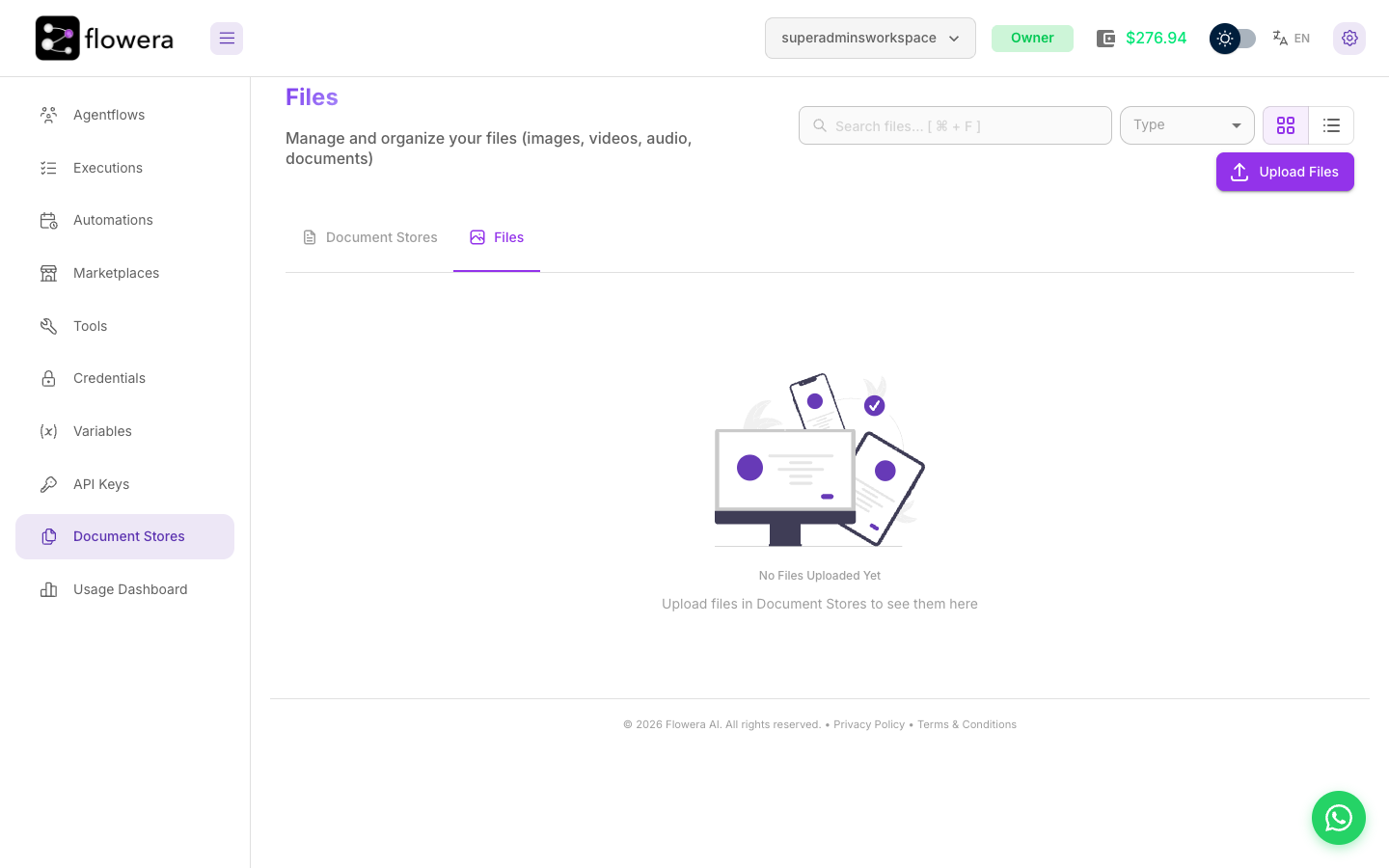
Open Document Stores from the left menu and switch to the Files tab, then press Upload Files. Images, video, audio, and documents are all accepted.
Flowera derives a sanitised name from the filename and that name is what flows reference:
lowercase, spaces replaced with hyphens, special characters dropped, and the extension kept.
Company Logo.png becomes company-logo.png.
The extension is part of the name, so the reference is {{ $assets.company-logo.png.url }} — not
company-logo and not company_logo. Rename thoughtfully before uploading: company-logo.png is
a better variable than logo_final_v2_USE_THIS.png. Easiest is to insert assets from the palette
rather than typing the name.
Public and private assets
Every asset is one or the other:
| Visibility | Reachable by URL | Appears in the variable palette | Usable in a flow |
|---|---|---|---|
| Public | Yes | Yes | Yes |
| Private | No | No | No — make it public first |
Private is the safe default for anything you're not ready to hand out. A public asset URL requires no login, so treat "public" as meaning genuinely public: fine for a logo or a brochure, wrong for a signed contract.
Switching back to private changes the link, so Flowera stops serving the old one straight away. It cannot reach copies that were already downloaded: public files are cached for up to a year by browsers and content networks, and WhatsApp stores a copy of any media it has delivered. Treat a file that was ever public as public for good.
Using an asset in a flow
Reference an asset anywhere variables work:
{{ $assets.company-logo.png.url }}
Two ways to insert one without typing it:
- The variable palette — the purple
{x}icon opens it; the Assets tab lists public assets with their sizes, and searching filters across the whole library. - Inline
{{— typing two braces in any variable field opens the suggestions, with assets under their own category.
{{ $assets.all }} gives an array of the workspace's public assets, for flows that pick a file
dynamically. Private assets are left out, so it matches what the palette offers and what a flow can
actually send.
{{ $assets.<name>.url }} only delivers while the asset is public. Point a flow at a private file
and the reference still produces a URL, but the public address refuses it — the flow runs, the
message sends, and the file simply is not there. Nothing in the run says why, so if a customer
reports a missing image, check the asset's visibility first.
See Uploads and assets for the difference between $assets and $uploads.
The short version: $assets are yours, uploaded ahead of time and stable. $uploads are the
customer's, arriving with a message and lasting one conversation.
Deleting an asset
Delete from the file list. The URL stops working immediately.
Anything referencing the asset breaks at that moment — a prompt containing
{{ $assets.company-logo.png.url }} resolves to nothing, and an HTML reply renders a broken image. The
flow itself doesn't fail, which makes this a failure you find out about from a customer. Search
your prompts for the asset name before deleting.
Related
- Uploads and assets —
$assetsvs$uploads - Variables — everything else
{{ }}can reach - Document stores — the other half of this page