Interface Tour
Flowera's app is two fixed pieces around one changing one: a left menu that picks what you're working on, a top bar that says who and where you are, and the page itself in the middle. Learn those two edges and the rest of the product is just pages.
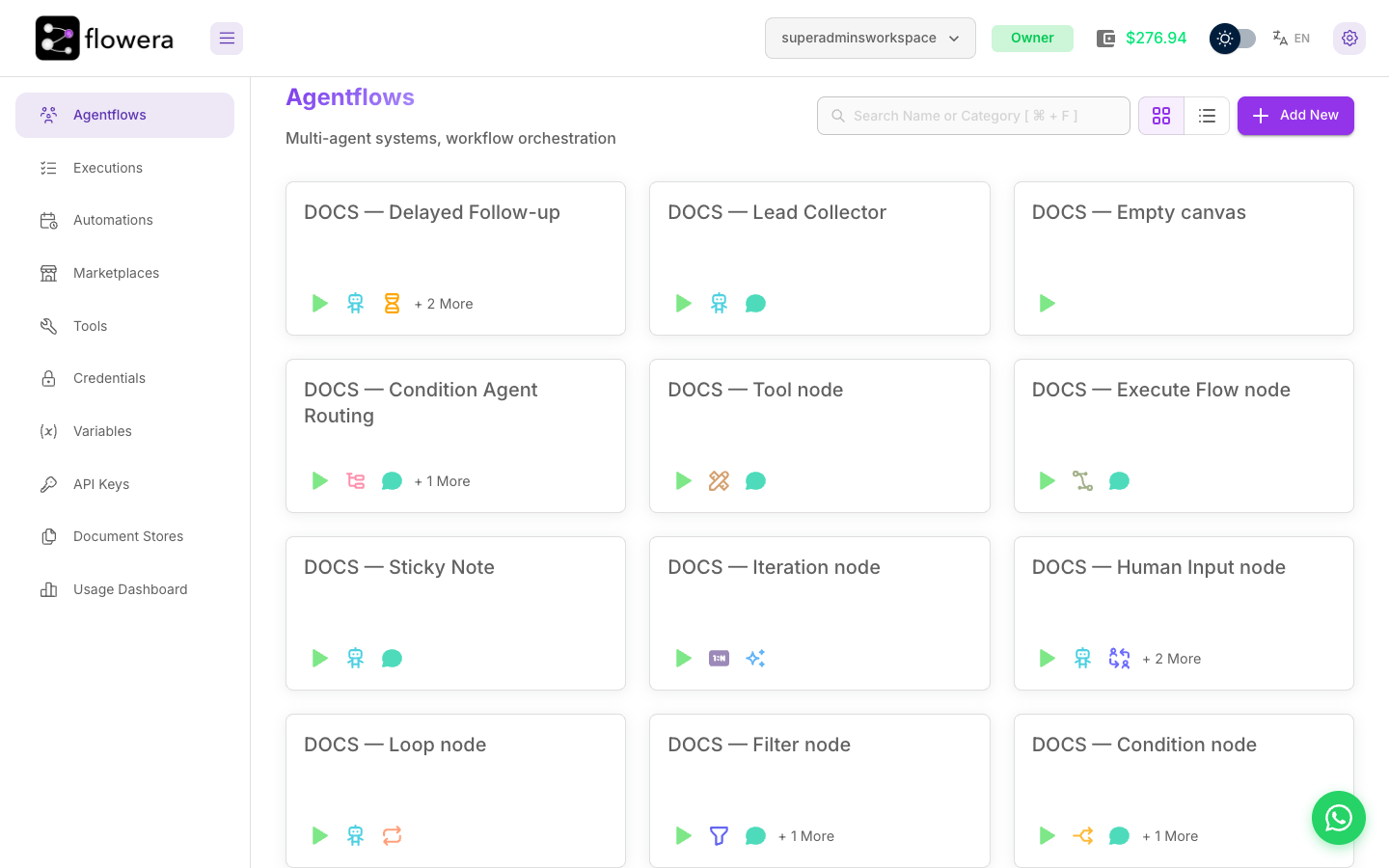
The left menu
Every entry is a workspace-scoped list — switch workspaces and all of them change together.
| Menu item | What lives there |
|---|---|
| Agentflows | Your flows. This is the home screen and where Add New starts a blank canvas. See AgentFlow. |
| Executions | Every run of every flow, with a step-by-step trace of what happened. See Executions. |
| Automations | Flows that run on a schedule or across many records at once, instead of waiting for a message. See Automations. |
| Marketplaces | Ready-made flow and tool templates you can copy into your workspace. See Templates. |
| Tools | Custom tools your agents can call. See Tools. |
| Credentials | Saved connections to Instagram, WhatsApp, Zoho, AI providers, and anything else you authenticate against. See Credentials. |
| Variables | Workspace-wide values your flows can reference without hardcoding them. See Custom variables. |
| API Keys | Keys for calling Flowera from your own code. See API Keys. |
| Document Stores | The knowledge your agents answer from — uploaded documents, chunked and indexed. See Knowledge & Assets. |
| Usage Dashboard | What you've spent, broken down by flow, model, and time. See Usage Dashboard. |
The button next to the logo collapses the menu to icons when you want more room for the canvas.
The top bar
The right-hand side of the top bar is about context rather than content — it answers "which workspace am I in, what am I allowed to do, and what is this costing me?"

From left to right:
- Workspace switcher — the active workspace, and a dropdown to change it or create another. See Signing up.
- Role badge — your role in this workspace (Owner, Editor or Viewer), which decides what the rest of the app lets you do. See Roles & Permissions.
- Wallet balance — credit remaining on the account. Clicking it opens the top-up dialog. See Credits & Wallet.
- Theme toggle — light or dark.
- Language switcher — English or Turkish. The whole app, including node names on the canvas, follows this setting.
- Settings — the account menu, below.
Your account menu
The gear at the far right opens your personal menu — the things that belong to you rather than to the workspace.
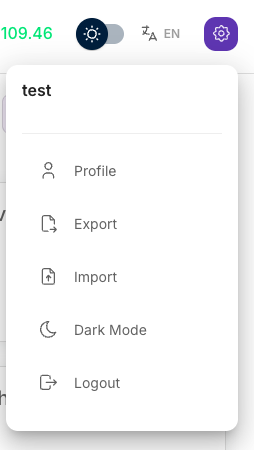
- Profile — your name, email, password, and billing settings. See Account.
- Export / Import — move flows, tools, credentials, and documents between Flowera installations as a single file.
- Dark Mode — the same switch as the theme toggle.
- Logout — end the session.
Platform administrators also see an Admin Panel entry here; ordinary accounts don't.
Inside a flow
Opening a flow swaps the whole middle area for the canvas — the visual builder where you add nodes, connect them, and test the flow in a chat panel without leaving the page. The canvas has its own header with the tools that only make sense for one flow: its chat tester, its messages, its leads, and its executions.
Those are covered in their own sections:
- The canvas — adding, moving, and connecting nodes.
- View Messages — the conversations a flow has had.
- View Leads — contact details it collected.
- Executions — the trace behind every run.
Where to go next
- Your first AgentFlow — build something with the parts you just met.
- What is AgentFlow? — the ideas behind the builder.