Templates
The fastest way to build a flow is to start from one that already works. Marketplaces is Flowera's template store: complete AgentFlows and tools you can copy into your workspace and edit like anything you built yourself.
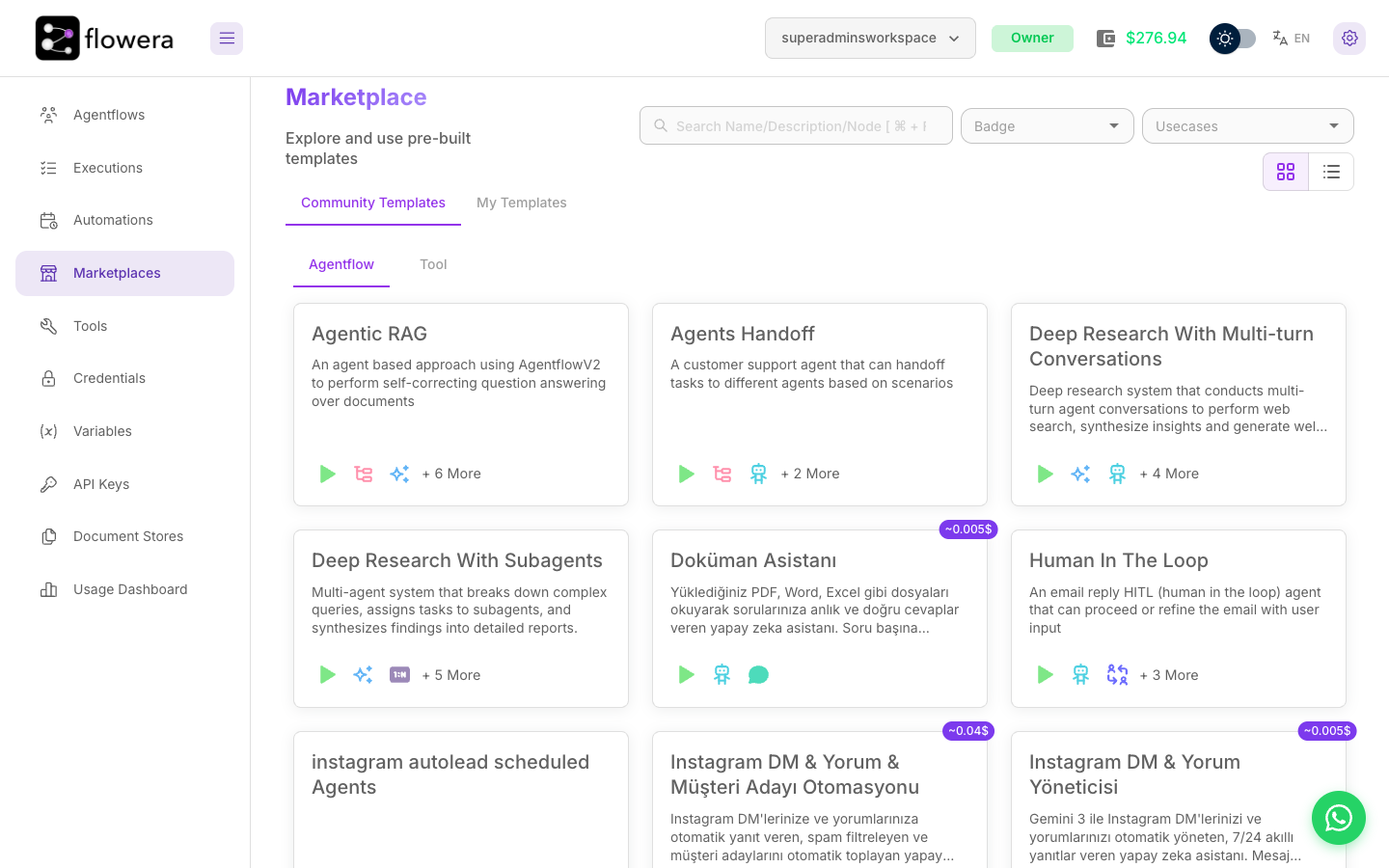
The template store
Open Marketplaces from the left menu. It has two halves:
- Community Templates — ready-made flows published for everyone. Today this is a small selection: the Instagram DM, comment and lead-capture automation, plus anything the community has published. The Tool tab here is currently empty.
- My Templates — flows and tools you saved from this workspace, so your team can reuse them. In practice this is where most of your reusable work will live.
Within each, an Agentflow tab and a Tool tab separate whole flows from single tools.
Browsing templates
Three ways to narrow the list:
| Control | What it filters by |
|---|---|
| Search | Name, description, or a node the template uses — searching retriever finds every template with one |
| Badge | The label a template carries — in practice the estimated per-run cost |
| Usecases | The job the template does — support, lead capture, research, and so on |
Each card shows the nodes the flow is built from as small icons, and a template may carry a badge
with an estimated per-run cost (for example ~0.04$). Most don't. Where it's there, it's a useful
sanity check before you copy something that turns out to run five models per message.
Previewing a template
Click a card to open the template. You see the whole flow on a read-only canvas — every node, every connection, and each node's configuration.
This is worth doing even when you don't intend to use the template. Reading how someone else solved routing, or grounded an agent in documents, teaches the patterns faster than the reference pages do.
Copying a template into your workspace
From the preview, use the option to create a flow from the template. Flowera copies the graph into a new, unsaved AgentFlow on your canvas — nothing is shared with the original, so edit freely.
Two things usually need attention right after copying:
- Models. The template's nodes come with a provider and model chosen by its author. Check they're the ones you want to pay for — see Choosing a model.
- Credentials. A template can't carry the author's accounts. Any node that needs Instagram, WhatsApp, Zoho, or your own API key needs its credential picked again.
Then save, test in the chat panel, and you have a working flow.
Saving your own flow as a template
Anything you build can go back into My Templates, which is how a team stops rebuilding the same starting point:
- Tools — the tool editor has Save As Template.
- Flows — save the flow as a custom template from the flow's own menu.
Saved templates are workspace-scoped: they show up for everyone in the workspace and nowhere else. To move one further than that, use Export / Import from the account menu.
A good internal template is a starting point, not a finished product — the graph, the prompts, and the structure, with the client-specific bits left obviously blank. Name it so the next person knows what it's for.
Related
- Your first AgentFlow — build one from scratch instead
- Tools — saving a custom tool as a template
- Credentials — what a copied template still needs from you