Account Settings
Everything on this page is about you rather than a workspace — your profile, your password, your data.
Your profile
Open Profile from the account menu (the gear at the top right).
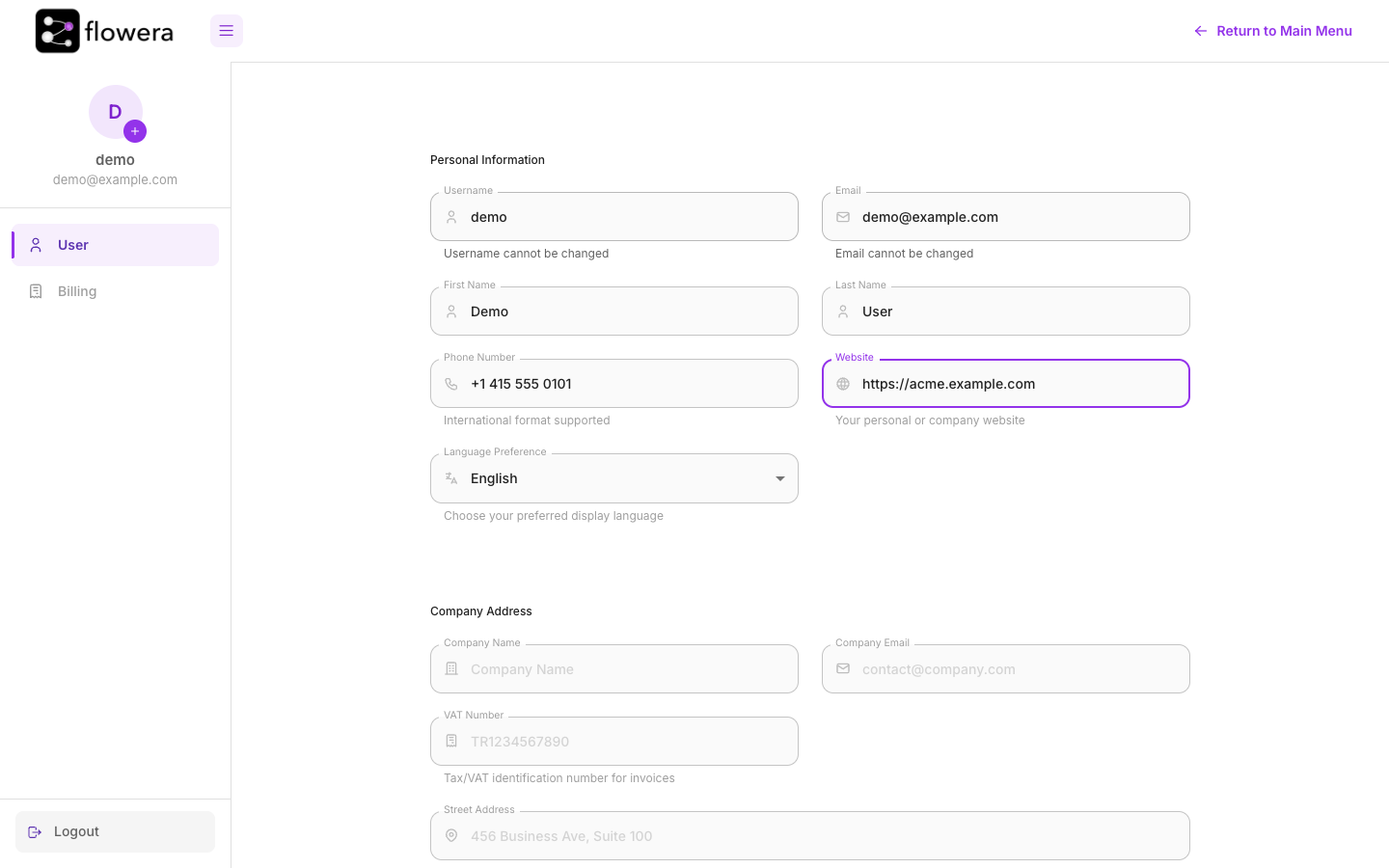
Personal Information
| Field | Notes |
|---|---|
| Username | Fixed at signup and not editable — see Signing up |
| Your login ID, and where password resets and notifications go. Also not editable | |
| First name / Last name | How you appear to colleagues in members lists |
| Phone number | Optional; international format |
| Website | Optional; your personal or company site |
| Language preference | English or Turkish, stored with your account so it follows you between devices |
Company Address below it — company name, email, VAT number, and street address — is what appears on your invoices. Fill it in before your first payment if you need proper billing details.
Billing in the side rail is the other tab: payment history, saved cards, and auto-recharge.
Changing your password
There's no password field on the Profile page. Use Forgot password? on the sign-in screen — it emails you a reset link. The requirements are the same as at signup: at least 8 characters, with an uppercase letter, a lowercase letter, a digit, and a special character.
That's also the path to take if you signed up with Google and never set a password.
Exporting your data
Export in the account menu writes a workspace's contents to a single file: flows, assistants, tools, custom templates, document stores and their chunks, variables — and, if you tick them, chat messages, feedback, and executions.
Useful for:
- Moving between installations — from a self-hosted instance to the cloud, or the reverse.
- A backup before something risky — a big refactor, or deleting a workspace.
- Promoting work from a staging workspace to production.
Credentials are not included. Nothing in the file will reconnect an Instagram account or an API key — you re-create those by hand after importing, and every flow that uses one needs repointing.
What the file can contain is chat messages and executions: real conversations with real customers, including whatever they typed. If you export those, treat the file as customer data — not something to leave in a shared drive or email around.
Importing data
Import reads such a file back into the current workspace. Check which workspace is active in the top bar before you start — imported content lands where you are, and moving it afterwards means doing it again.
Import adds; it doesn't replace. Importing a file whose flows already exist gives you two copies, not an update.
Theme
Dark Mode in the account menu switches the interface, and the toggle in the top bar does the same thing. It's per person, not per workspace.
Language
The EN / TR switcher in the top bar changes the whole interface, including node names on the canvas. It's stored with your account, so it follows you between browsers and devices.
Related
- Signing up — where the account came from
- Credits & wallet — the billing side of the account
- Interface tour — where the account menu lives