Inviting Users
Bringing someone into a workspace takes their email address and a decision about what they should be allowed to do.
Inviting someone to a workspace
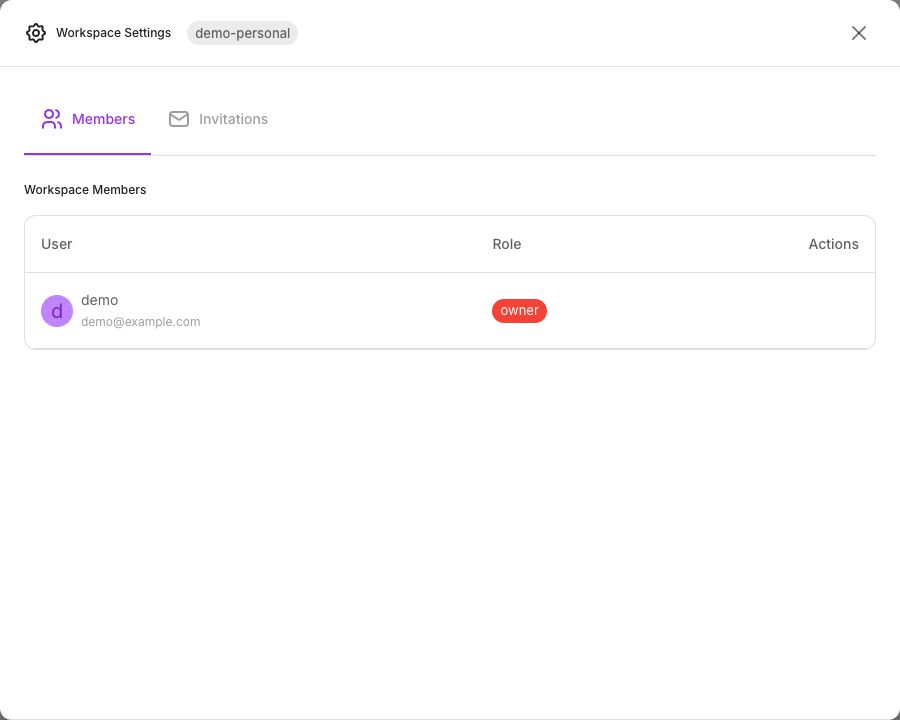
- Open the workspace switcher and choose Workspace Settings.
- On the Members tab, invite a new user.
- Enter their email address and choose a role — Editor or Viewer.
- Send.
Inviting is an Owner action. If you don't see the option, you aren't an Owner in this workspace.
Note the choice at step 3: Editor or Viewer, not Owner. Ownership is transferred, not granted — see Workspaces.
How the invitation reaches them
No email is sent. Invitations are in-app only, so tell the person yourself that you've invited them — nothing will arrive in their inbox, and there is no link to follow.
What they do:
- If they already have a Flowera account, the invitation appears in their workspace switcher the next time they sign in. They accept it there.
- If they don't, they sign up first, using the exact address you invited — then accept from the switcher.
Pending invitations are listed on the Invitations tab until they're accepted, and they expire after 7 days. An expired one has to be sent again.
The address has to match. Someone who signs up with a different address — a personal one instead of a work one, say — won't be in the workspace, and the invitation will still be pending. Between that and the missing email, it's the usual explanation for "I accepted but I can't see anything".
Members list
The Members tab shows everyone with access, with their name, email, and role. It's the authoritative answer to "who can see this workspace" — worth reading whenever a project changes hands.
Changing someone's role
Change a member's role from the members list. The server enforces the new role immediately, but the person's own interface doesn't catch up until they sign out and back in, or switch workspaces — until then they may still see controls that now fail. Tell them to sign out if the change needs to be visible to them straight away.
Promoting someone to Editor gives them the ability to edit and delete every flow, credential, and document in the workspace. That's the whole point of the role, and it's worth being deliberate about: an Editor can delete a document store or repoint a credential, and nothing asks a second person first.
Removing a member
Remove them from the members list. Access ends immediately.
What stays behind: everything they built. Flows, tools, documents, and automations belong to the workspace, not to the person, so removing someone never deletes their work.
What to check afterwards:
- API keys they created still work — they belong to the workspace. Rotate any that only they used. See API keys.
- Credentials they added still work. Rotate any whose secret they knew.
- Ownership, if they were the Owner. Transfer it before removing them, not after.
Related
- Roles & permissions — what Editor and Viewer actually allow
- Workspaces — creating a workspace to invite people into