Workspaces
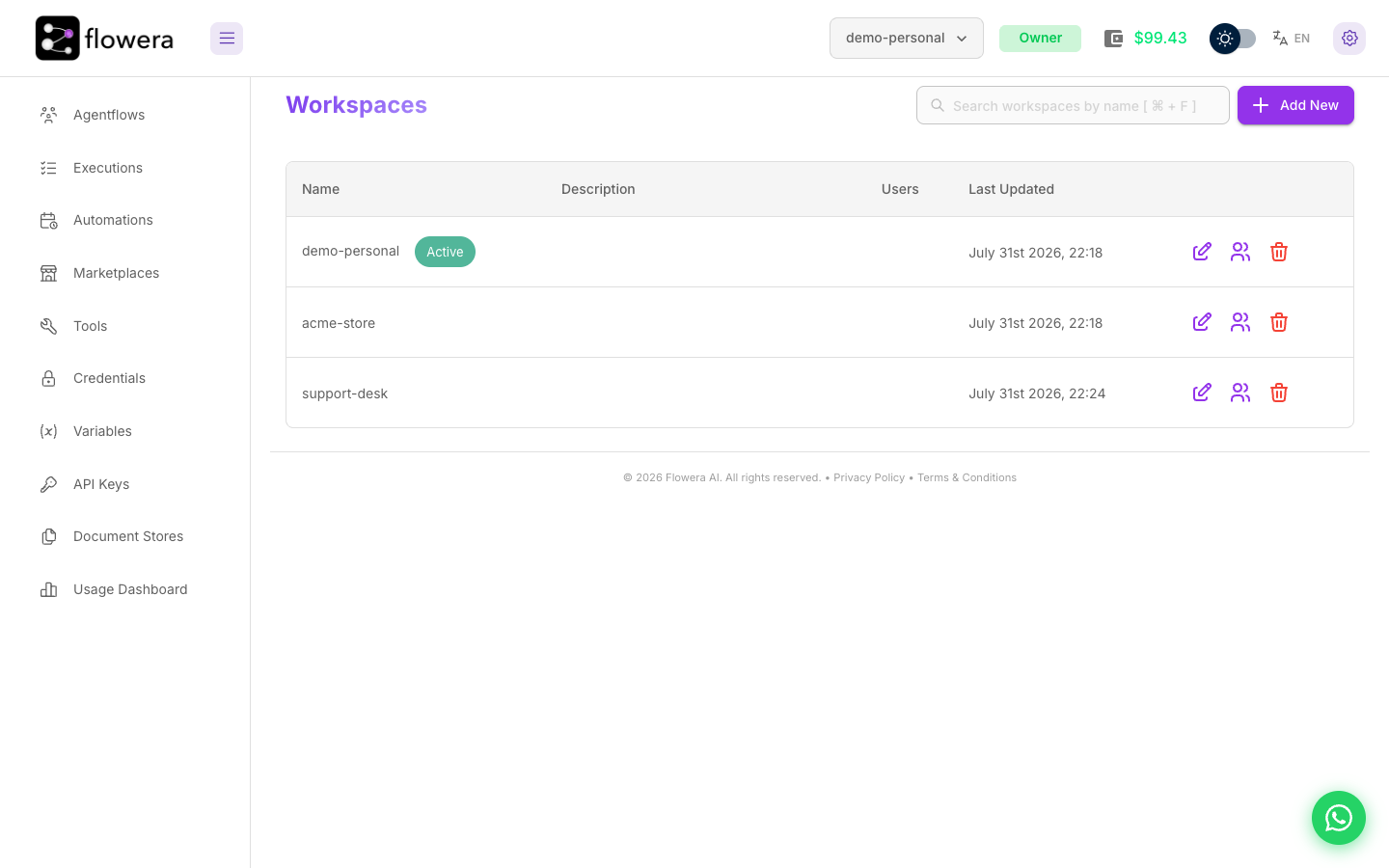
A workspace is the boundary around a body of work. Everything you build belongs to exactly one, and nothing crosses between them.
What a workspace holds
| Belongs to the workspace | Belongs to the account |
|---|---|
| Agentflows, executions, and messages | Your profile and password |
| Credentials and connected accounts | The wallet and payment cards |
| Tools, variables, API keys | |
| Document stores and files | |
| Automations, leads, sessions |
Read that split twice if you run client work. Resources are separated; money is not. Three client workspaces keep three sets of Instagram accounts safely apart while spending from one balance — which is why the Usage Dashboard's per-flow breakdown is how you bill them.
Creating a workspace
Open the workspace switcher in the top bar and choose Create New Workspace. Name it and it's ready — empty, with you as its Owner.
Worth a new workspace:
- A different client or brand, so their credentials and data never appear in each other's lists.
- A staging environment, where you can break things without touching what's live.
- A different team, when the people who should see one project shouldn't see another.
Not worth a new workspace: organising your own flows. Naming conventions do that without duplicating every credential.
Workspace settings
The switcher's Workspace Settings opens the workspace's own dialog, with two tabs:
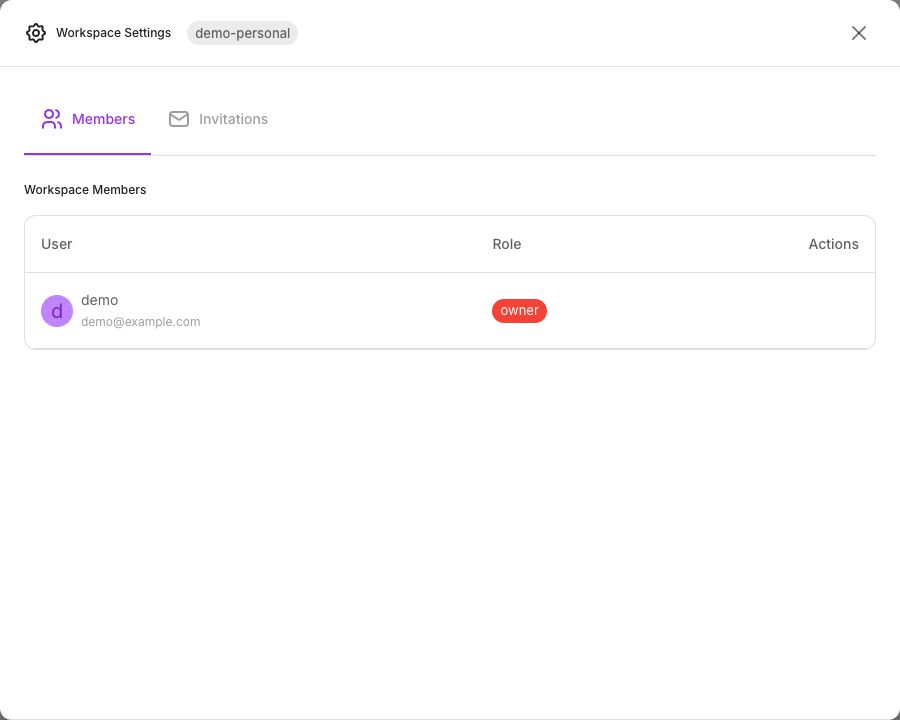
- Members — everyone with access, their role, and the controls to change or remove it.
- Invitations — invites sent but not yet accepted.
Owners see this option. Editors and Viewers don't — managing a workspace is what the Owner role adds.
Switching between workspaces
Pick another from the switcher. The app reloads and every list — flows, credentials, documents, executions — belongs to the workspace you chose.
The reload is deliberate: it guarantees nothing from the previous workspace is left on screen.
Empty list where you expected content? Check the workspace name in the top bar first. It's the most common explanation, and much more likely than data loss.
Transferring ownership
A workspace can be handed to another member. The new Owner gets full control, and the previous Owner is given a role you choose — usually Editor.
Do this before someone leaves rather than after. An Owner-less workspace needs support to recover.
Deleting a workspace
Deleting is permanent and takes everything inside with it: flows, credentials, documents, automations, and history.
Before deleting, check:
- Connected accounts — an Instagram or WhatsApp account connected here stops working for any flow that used it.
- Automations — scheduled and batch runs go with the workspace.
- API keys — anything calling them gets a
401from that moment. - Export first if there's any chance you'll want the flows again. Account menu → Export.
Your personal workspace — the -personal one created at signup — is where your own experiments
live. It cannot be deleted; the option isn't offered, and the server refuses it. Empty it
instead if you want it out of the way.
Related
- Inviting users — adding people to a workspace
- Roles & permissions — what each member can do
- Signing up — where your first workspace came from