WhatsApp Support Bot with Knowledge
A great support bot doesn't guess — it answers from your documentation. In this tutorial you'll build a WhatsApp bot that pulls relevant information from a knowledge base with a Retriever node, then has an Agent answer using only that information. This pattern (retrieve, then answer) is the backbone of accurate support bots on any channel.
What you'll build: a WhatsApp bot that answers product and policy questions grounded in your own docs.
Nodes you'll use:
- Start with a WhatsApp trigger
- Retriever — fetches relevant knowledge
- Agent — answers using that knowledge
- Tool with the WhatsApp tool — sends the answer to WhatsApp
Concepts to know:
- Triggers overview
- Memory — keeping context across messages
- Your WhatsApp Business account is connected to Flowera (a one-time Channels setup — see the WhatsApp trigger page).
- You have a Document Store with your help content ingested. The Retriever node reads from Document Stores — set one up first, then point the Retriever at it.
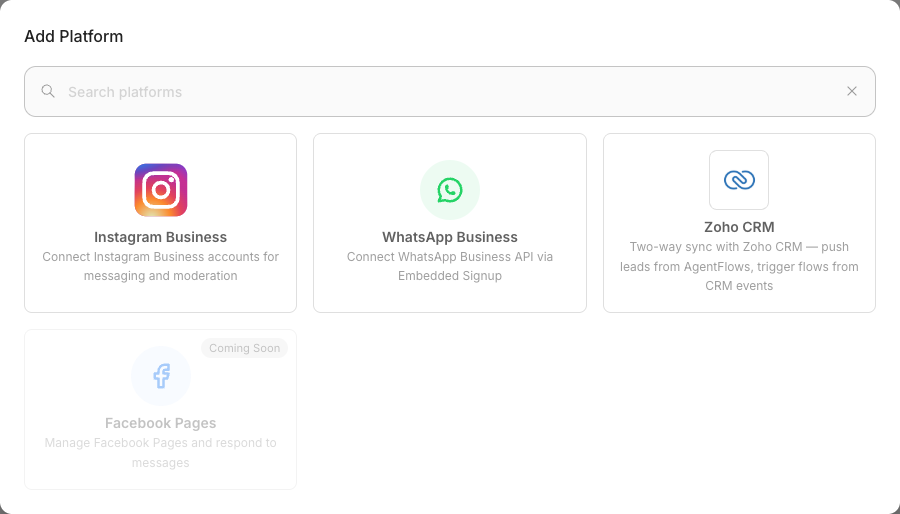
Where you connect it: open Credentials in the sidebar, switch to the Connected Accounts tab, and click Add Platform. Instagram Business and WhatsApp Business are both in that list, alongside Zoho CRM.
Step 1 — Add the WhatsApp trigger
Create a new AgentFlow. On the Start node, add a WhatsApp Business webhook trigger and configure it:
- WhatsApp Account — pick your connected number.
- Message Types — enable at least Text. WhatsApp supports many types (images, documents, location, button replies, and more); for a support bot, Text is the essential one.
Incoming messages arrive as {{$question}}, alongside WhatsApp payload values like senderId and messageId (see the WhatsApp trigger page for the full list).
Step 2 — Add the Retriever
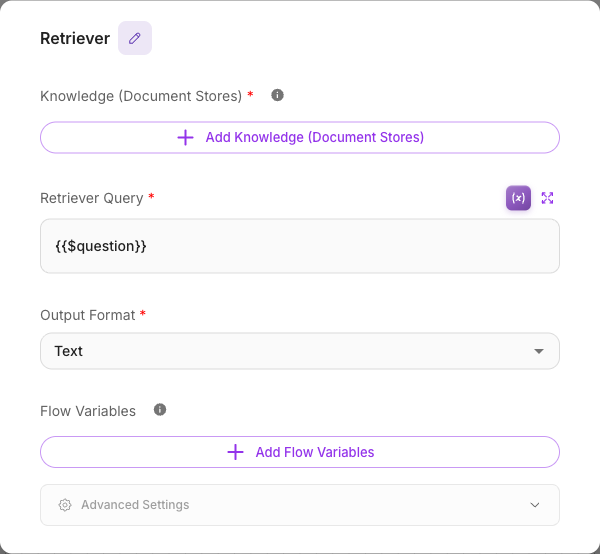
Add a Retriever node and connect the Start node to it. This node searches your knowledge for passages relevant to the visitor's question.
Configure it:
-
Knowledge (Document Stores) — select the Document Store holding your help content.
-
Retriever Query — what to search for. Use the incoming message:
{{$question}} -
Output Format — Text is fine for feeding an Agent; choose Text with Metadata if you also want source references.
The Retriever's result — the relevant passages — becomes available as its output for the next node.
Step 3 — Answer with an Agent, grounded in the knowledge
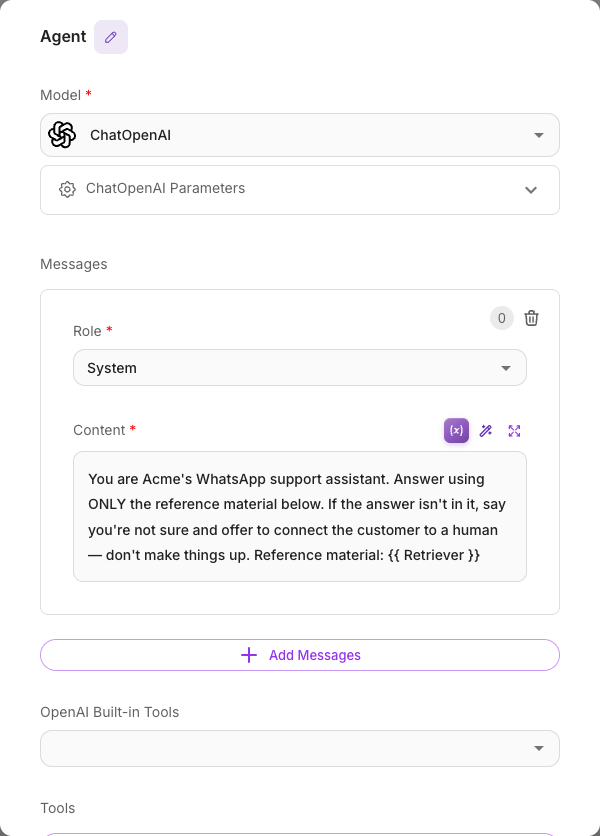
Add an Agent node and connect the Retriever to it. The key move: feed the retrieved text into the Agent and instruct it to answer only from that text.
In the Agent's System message:
You are Acme's WhatsApp support assistant. Answer using ONLY the reference material below. If the answer isn't in it, say you're not sure and offer to connect the customer to a human — don't make things up.
Reference material:
{{ Retriever }}
Here {{ Retriever }} is the Retriever node's label, and it carries the passages that node just found. Type {{ in the System message and pick the Retriever from the list so the label is inserted correctly. Grounding the Agent this way is what keeps answers accurate.
Turn on Enable Memory on the Agent so it remembers earlier messages in the same WhatsApp thread — useful when a customer asks a follow-up like "and how much does that cost?". See Memory.
Step 4 — Send the answer with the WhatsApp tool
The Agent has written an answer, but nothing has reached the customer yet — delivering it is a separate step, done by the WhatsApp tool.
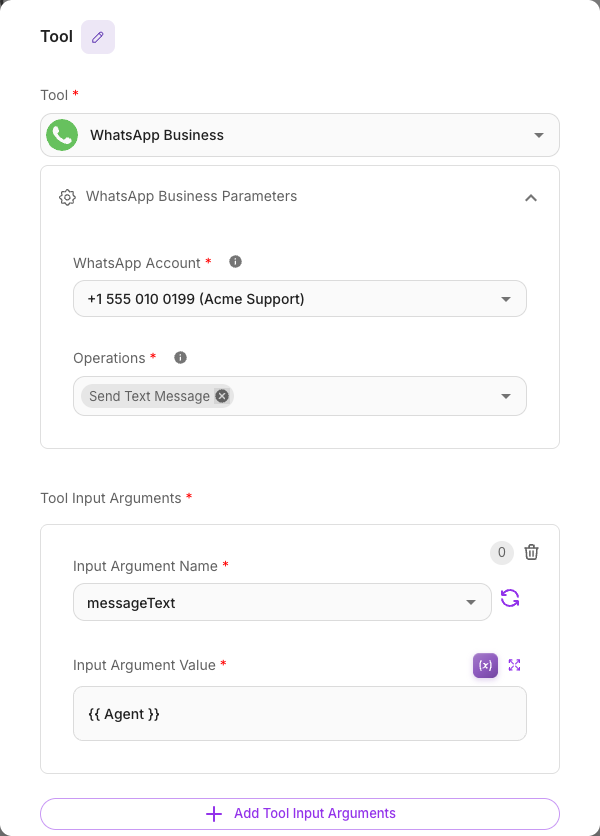
Add a Tool node, connect the Agent to it, and configure it:
- Tool — pick WhatsApp Business.
- WhatsApp Account — the number you connected. With a single WhatsApp trigger in the flow, Flowera pre-selects it.
- Operations — Send Text Message.
- Tool Input Arguments — add one row:
- Input Argument Name:
messageText - Input Argument Value:
{{ Agent }}— type{{and pick the Agent from the list.
- Input Argument Name:
recipientPhoneNumber fills itself in from the trigger's payload — the customer who messaged you is the recipient — so you only map the message text.
Direct Reply writes into the Flowera conversation (the chat widget stream and the View Messages transcript). It never calls WhatsApp. On a Meta channel, only a send tool puts a message in front of the customer — the WhatsApp tool in a Tool node, or the same tool attached to an Agent. A flow that ends in Direct Reply looks like it replied, and the customer receives nothing.
Send Text Message only works within 24 hours of the customer's last message — Meta's rule. A support bot answering an incoming question is always inside it. To message someone first, or later than that, you need Send Template Message instead. See WhatsApp tool.
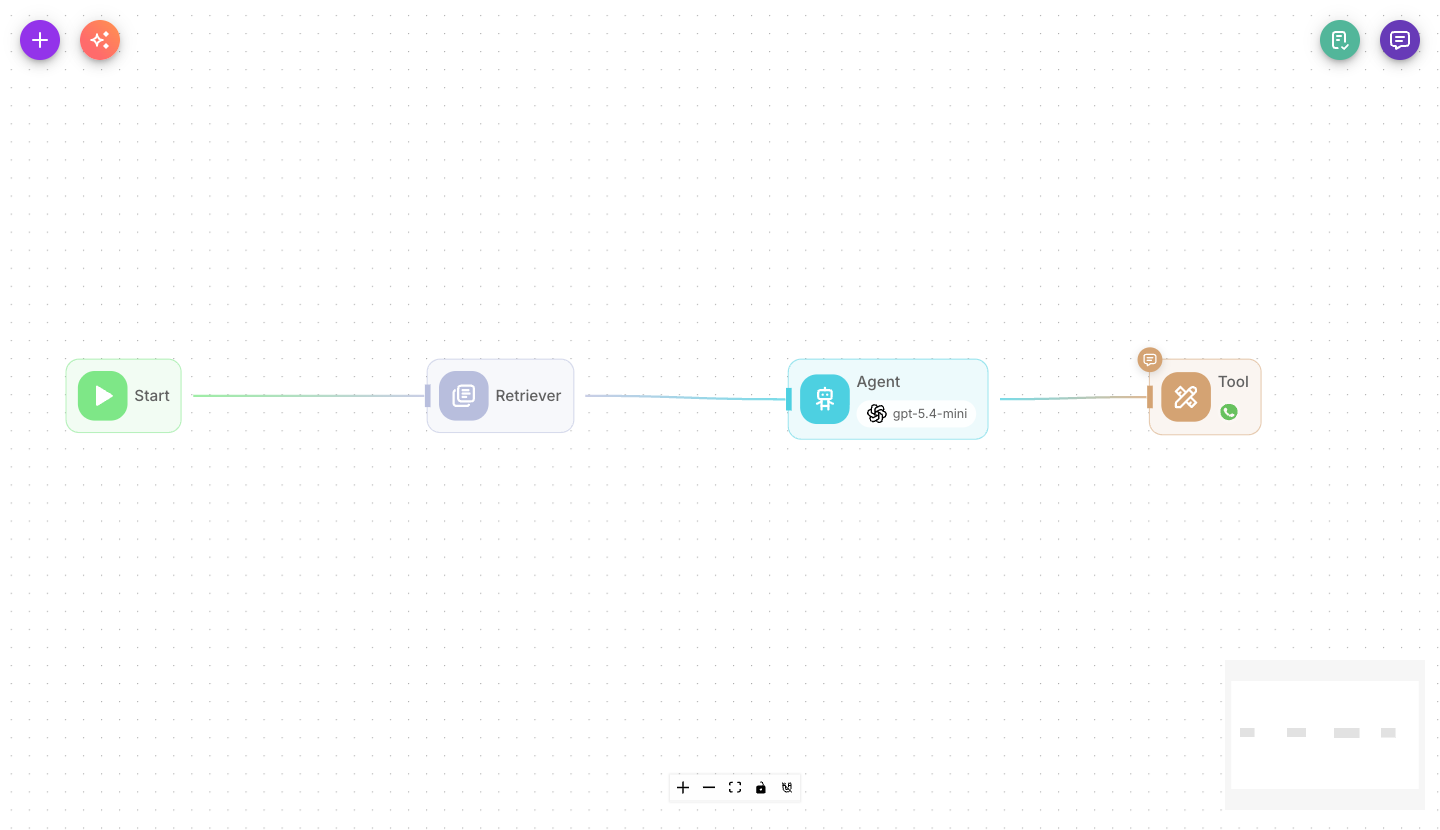
Your finished graph: Start (WhatsApp) → Retriever → Agent → Tool (WhatsApp).
Turn Show Output in Chat off on the Tool node (its output is just the send receipt) and leave it on for the Agent, so View Messages shows what the bot actually said. See Show output in chat.
Step 5 — Save and test
Save the flow, then message your WhatsApp Business number with a question your docs can answer ("What's your return policy?"). The bot retrieves the relevant passage and answers from it. Try an off-topic question too — the bot should politely say it isn't sure rather than inventing an answer.
What you learned
- A WhatsApp trigger fires your flow on incoming messages, delivering them as
{{$question}}. - The Retriever searches a Document Store for passages relevant to the question.
- Feeding the retrieved text into an Agent and telling it to answer only from that text keeps answers accurate.
- Turn on the Agent's memory to handle follow-up questions.
- The WhatsApp tool in a Tool node is what delivers the answer —
messageTextset to{{ Agent }}. Direct Reply would only write to the Flowera transcript.
Next steps
- Do the same on Instagram: Instagram DM autoresponder.
- Route by topic before answering: Conditional routing.
- Dig into the retrieval node: Retriever.