Embed the Chatbot
The embed widget puts one of your flows on your website as a chat bubble or a full-page chat. It's one script tag and no build step.
Adding the widget to your site
- Open the flow and press API Endpoint in the canvas header.
- Stay on the Embed tab.
- Choose a variant.
- Copy the snippet and paste it into your page, before the closing
</body>tag.
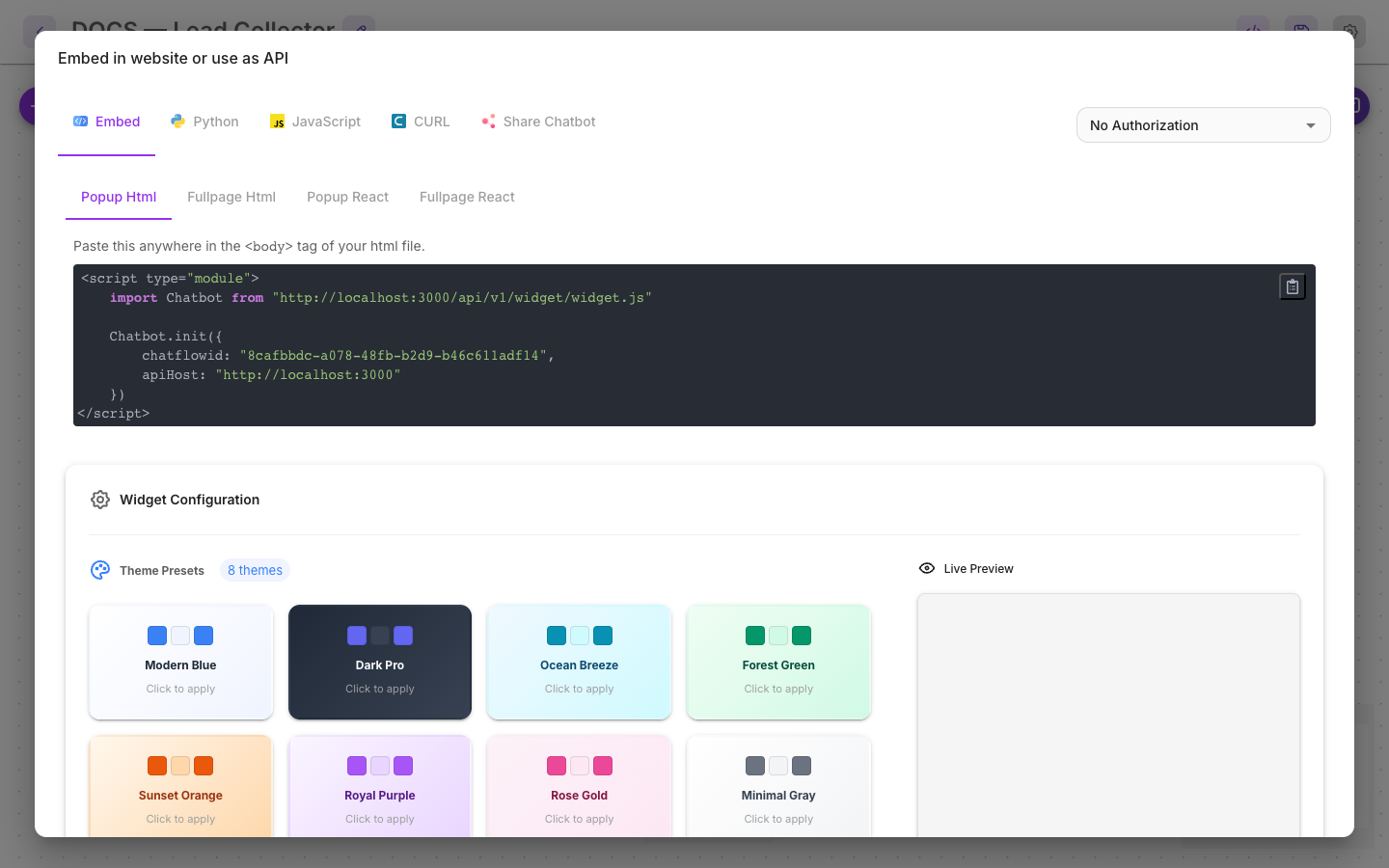
Four variants are offered:
| Variant | What you get |
|---|---|
| Popup HTML | A floating chat bubble on any HTML page. The usual choice |
| Fullpage HTML | Chat filling a container — for a dedicated support page |
| Popup React | The same bubble as a React component |
| Fullpage React | The full-page version as a React component |
The embed snippet
<script type="module">
    import Chatbot from "https://<your-flowera-domain>/api/v1/widget/widget.js"
    Chatbot.init({
        chatflowid: "<your-flow-id>",
        apiHost: "https://<your-flowera-domain>"
    })
</script>
Two values, both taken care of by the copied snippet: which flow to run, and which Flowera installation to reach. Those are the only two options the widget reads.
The Fullpage variants differ: they render into an element on the page rather than a floating
bubble, so the snippet uses a container tag and initFull.
<flowera-fullchatbot></flowera-fullchatbot>
<script type="module">
    import Chatbot from "https://<your-flowera-domain>/api/v1/widget/widget.js"
    Chatbot.initFull({
        chatflowid: "<your-flow-id>",
        apiHost: "https://<your-flowera-domain>"
    })
</script>
Copy whichever variant the dialog shows for the tab you picked rather than adapting one by hand.
chatflowid is an identifier, not a secret key. Anyone who views your page can read it and
talk to the flow. Treat an embedded bot as a public interface: don't put internal information in
its prompt, and don't give it tools that do anything you wouldn't let a stranger do.
Theming
The dialog's configuration panel covers the appearance without touching code:
- Theme presets — eight ready-made looks (Modern Blue, Dark Pro, Ocean Breeze, Forest Green, Sunset Orange, Royal Purple, Rose Gold, Minimal Gray), applied with one click.
- General settings — the header title, the welcome message, and the error message.
- Title / Header — the header's background and text colours.
- Avatar — bot and user avatar images, and their size.
- Bot message, User message, Text input, Chat button, Tooltip — colours and wording for each part, section by section.
Start from the preset closest to your site, then adjust. Building a theme from scratch is a long way round to something a preset almost gives you.
The welcome message earns particular attention: it's the only instruction most visitors read. "Ask me about orders, returns, or delivery" outperforms "Hello! How can I help you today?" because it tells people what the bot is actually good at.
Passing context into the flow
The widget cannot do this. It reads only chatflowid and apiHost; there is no option for
carrying a customer ID, a product, or a language from your page into the flow.
If you need per-visitor context, call the Prediction API from your own
backend instead — it accepts overrideConfig on each request, and your server is the right place
to decide what a given visitor is allowed to send.
Limiting where it loads
The widget runs wherever the script runs, so control that on your side:
- Set Allowed Domains on the flow. This is the real per-site control: the server checks the request's origin against that list and refuses anything else, so copying your snippet onto another site doesn't work. Leave it empty and any site can embed your flow.
- Only include the script on the pages that should have it. A tag-manager rule is enough.
- Set the flow's rate limit so one visitor with a script can't run up a bill.
- Watch the Usage Dashboard for the first week after launch. Real traffic is always different from expected traffic.
The widget sends no Authorization header, so a flow with an API key attached returns 401 on
every message — the embedded chatbot stops working entirely. API keys are for server-to-server
calls to the Prediction API. Use Allowed Domains for the embed.
Related
- Web chat channel — what web-chat flows can do
- Share a link — a hosted page, with no site changes
- Chat input trigger — the Start node behind it