Share a Chatbot Link
Sometimes you don't want to embed anything — you just want to send someone a link that opens a working bot. Every flow can have one.
Getting a shareable link
- Open the flow and press API Endpoint in the canvas header.
- Switch to the Share Chatbot tab.
- Copy the link, or open it in a new tab to see what visitors will see.
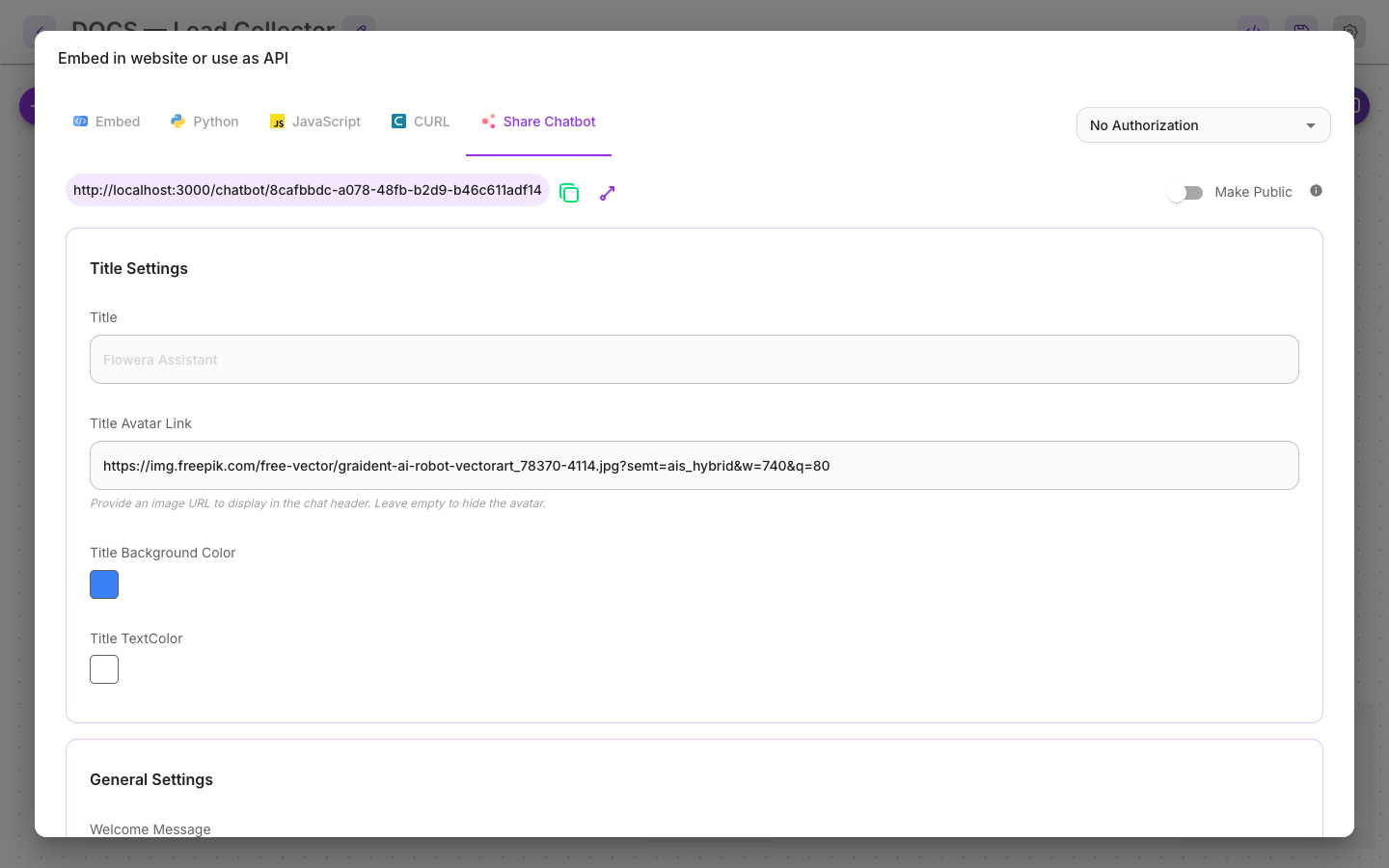
The link points at a hosted page that runs this flow and nothing else. No deployment, no embed code, no website required.
Good for: showing a client what you built, letting colleagues test before launch, a QR code on printed material, or a bot that lives in an email signature rather than on a site.
Who can open it
The Make Public toggle decides:
| Toggle | Who can open the link |
|---|---|
| Off | Nobody. The link shows "Access Denied" to everyone, including you |
| On | Anyone with the link |
There is no signed-in middle ground. Off doesn't restrict the link to your workspace — it switches the link off. Your colleagues see the same Access Denied page a stranger would.
For internal review, open the flow on the canvas and use its chat panel — that runs the same flow while you're signed in, without publishing anything.
On means genuinely public. There's no login, no gate, and every conversation costs credit. A link that spreads further than intended is a bill that grows without a customer attached to it.
Turn Make Public off when a demo is over. It's the single most common way a workspace ends up paying for traffic it can't account for.
Customising the page
The Share tab has its own settings, separate from the embed widget's — the two are configured and stored independently, so styling one does not style the other. Five sections:
- Title settings — the title text, an avatar image, and the header's colours.
- General settings — the welcome message and background.
- Bot message / User message — colours and avatars for each side of the conversation.
- Text input — the input box, its placeholder, and the send button.
There are no theme presets here; those are an Embed-tab feature.
Because a shared link is often the only thing a person sees of your product, the welcome message does more work here than anywhere else. Say what the bot can do, in one line.
Disabling the link
Turn Make Public off and the link stops working for everyone, immediately — the server rejects each message as well as the page, so an already-open tab can't keep talking to it either.
There is no way to expire a link automatically, and no way to see how many people have it. If a link has spread further than you meant, turning the toggle off is the control you have — and the Usage Dashboard is how you notice you need it.
Related
- Embed the chatbot — the same flow, on your own site
- Web chat channel — what web-chat flows can do
- Usage Dashboard — watching what a public link costs